Step-by-step help · Player guide
Find a tabletop RPG convention and book your table
Step by step, with screenshots: find a tabletop RPG convention by city or game, read the program, book a table, the waiting list, plan your gaming weekend.
Screenshots are from the application, taken on a sample setup.
Create an account
The whole program can be read without an account. An account is only required when reserving a seat. One account works for all conventions, even between associations with no connection.
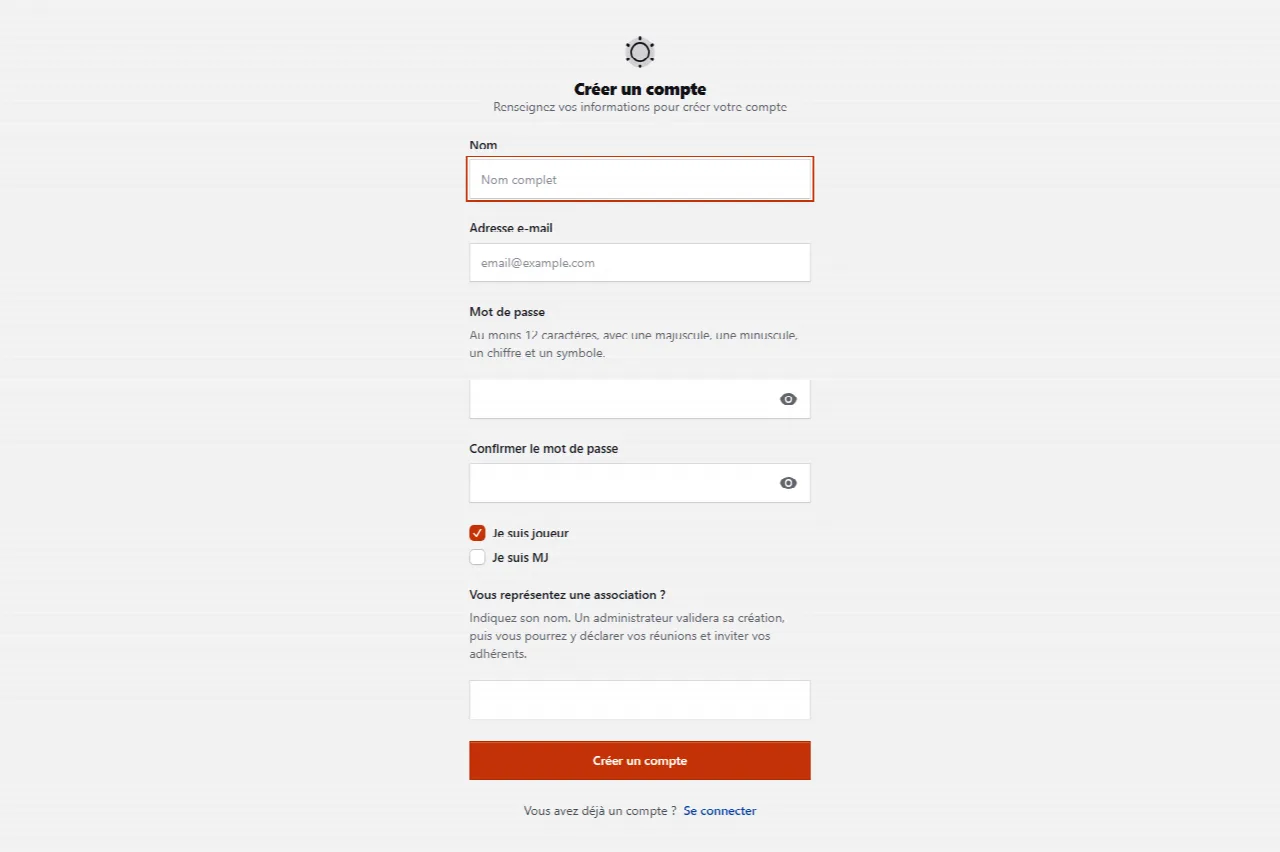
- At the top right of any page, click Create an account.
- Fill in your Name, your Email address, a Password and its confirmation. The rule is written under the field: At least 12 characters, with an uppercase letter, a lowercase letter, a digit and a symbol.
- Keep I'm a player ticked. Also tick I'm a GM if you run games: this makes “My tables” appear in your menu, and nothing else. At least one of the two boxes must be ticked.
- The Do you represent an association? field is for a club's board; a player leaves it empty.
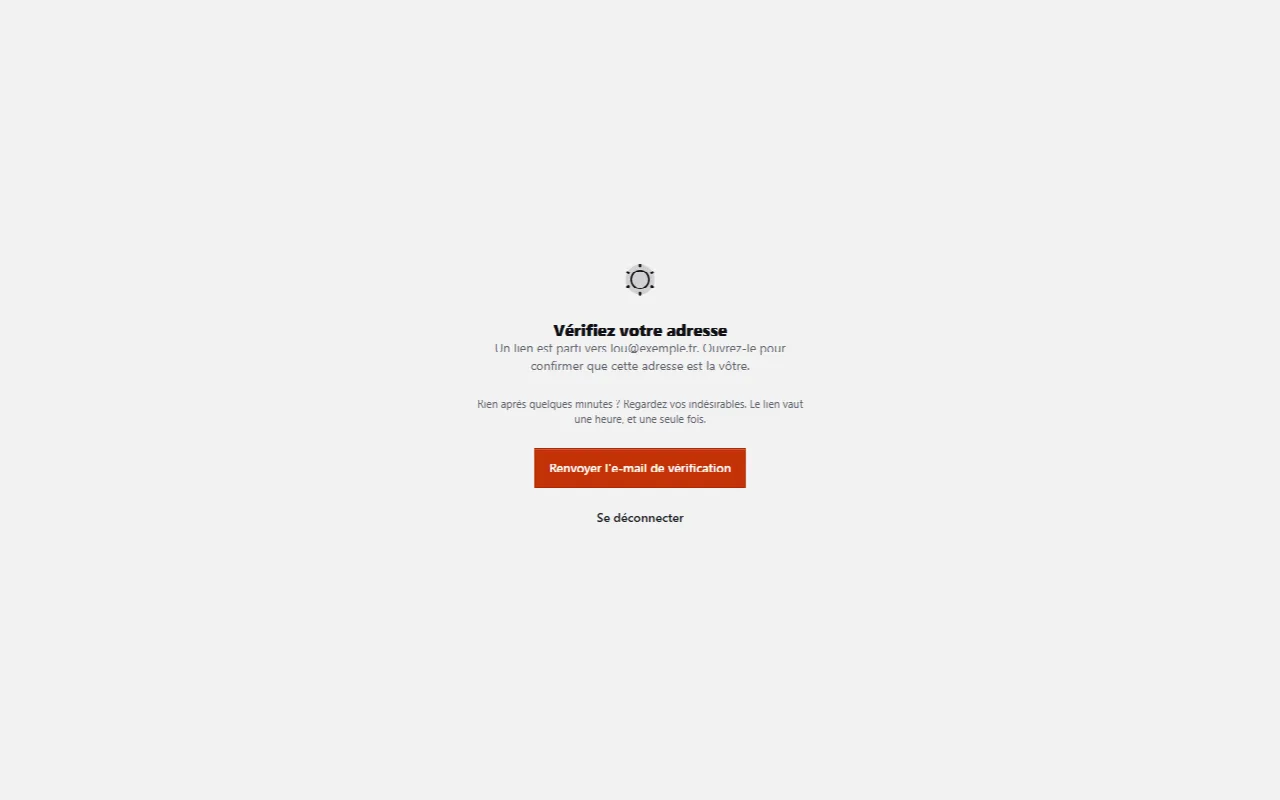
- Click Create an account. An email goes out immediately to your address, and the screen repeats it: A link was sent to … Open it to confirm this address is yours. The link is valid for one hour, and once only.
- Open the email and click Verify email address. You land on Home, which asks what you’re here to do. Nothing received? Check your spam folder, then Resend the verification email.
If the Continue with Discord or Continue with Google buttons are offered under the form, they create the account and log you in in one go, with no password to choose and no address to verify.
Log in
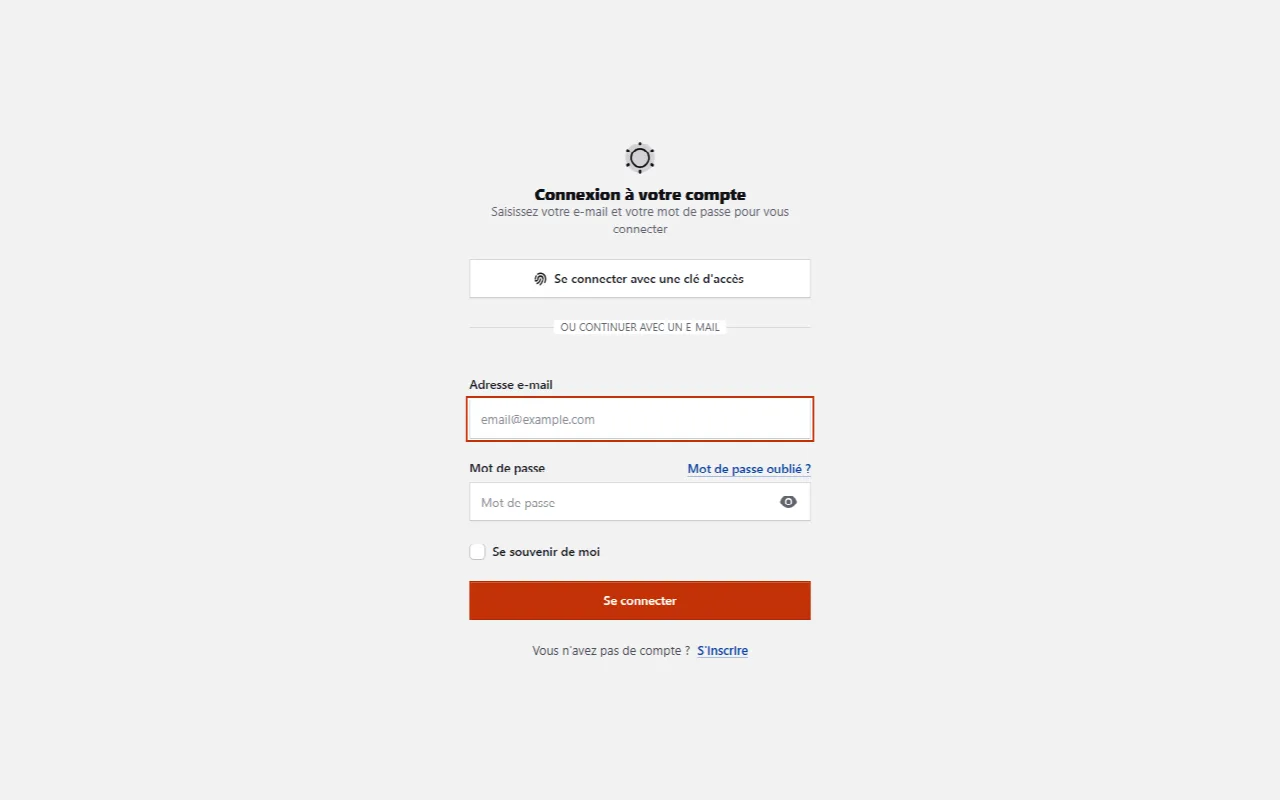
- Click Log in at the top right.
- Enter your Email address and your Password. Remember me saves you from starting over at every visit on this device.
- Click Log in.
If you saved a passkey in your settings, Sign in with a passkey logs you in with your fingerprint, face or device code, with no password. If you chose Discord or Google at sign-up, use the same button again.
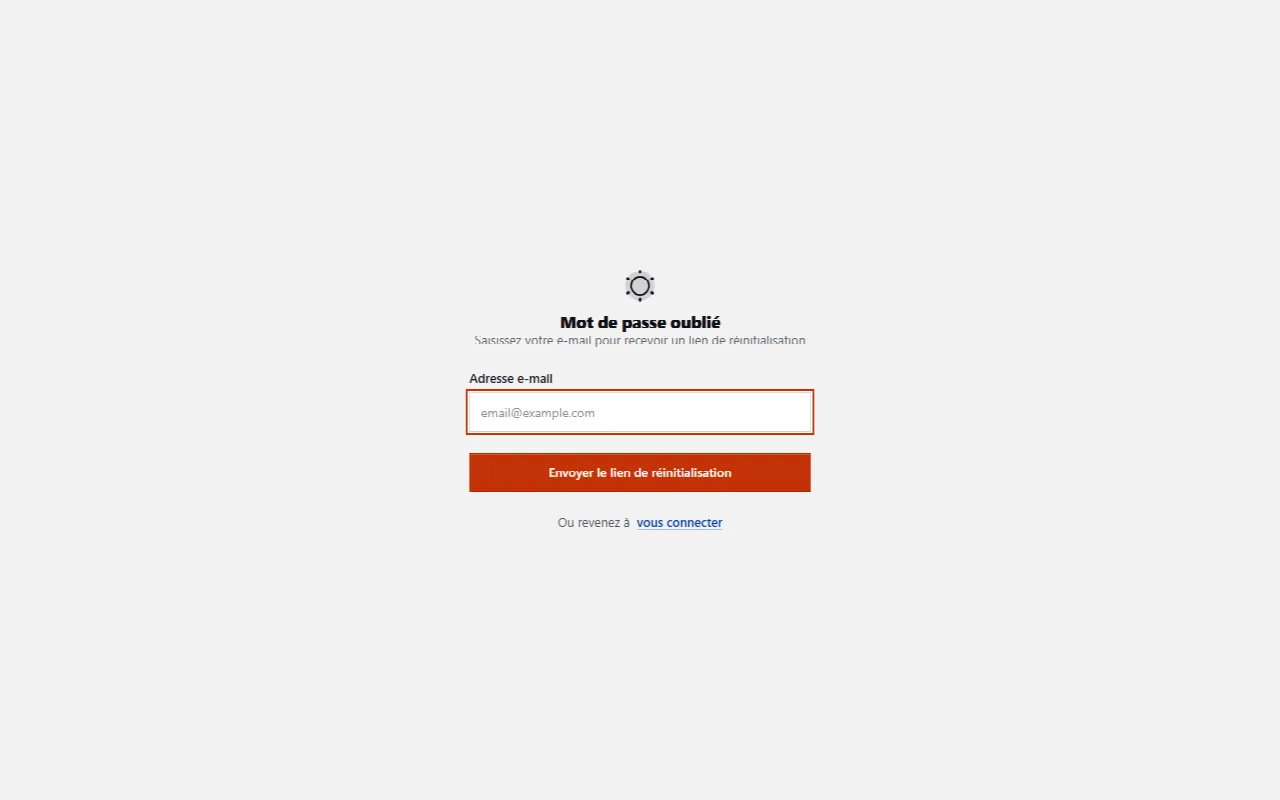
Lost password: click Forgot your password?, enter your address, then Send reset link. An email brings you a link to choose a new one.
Find a convention
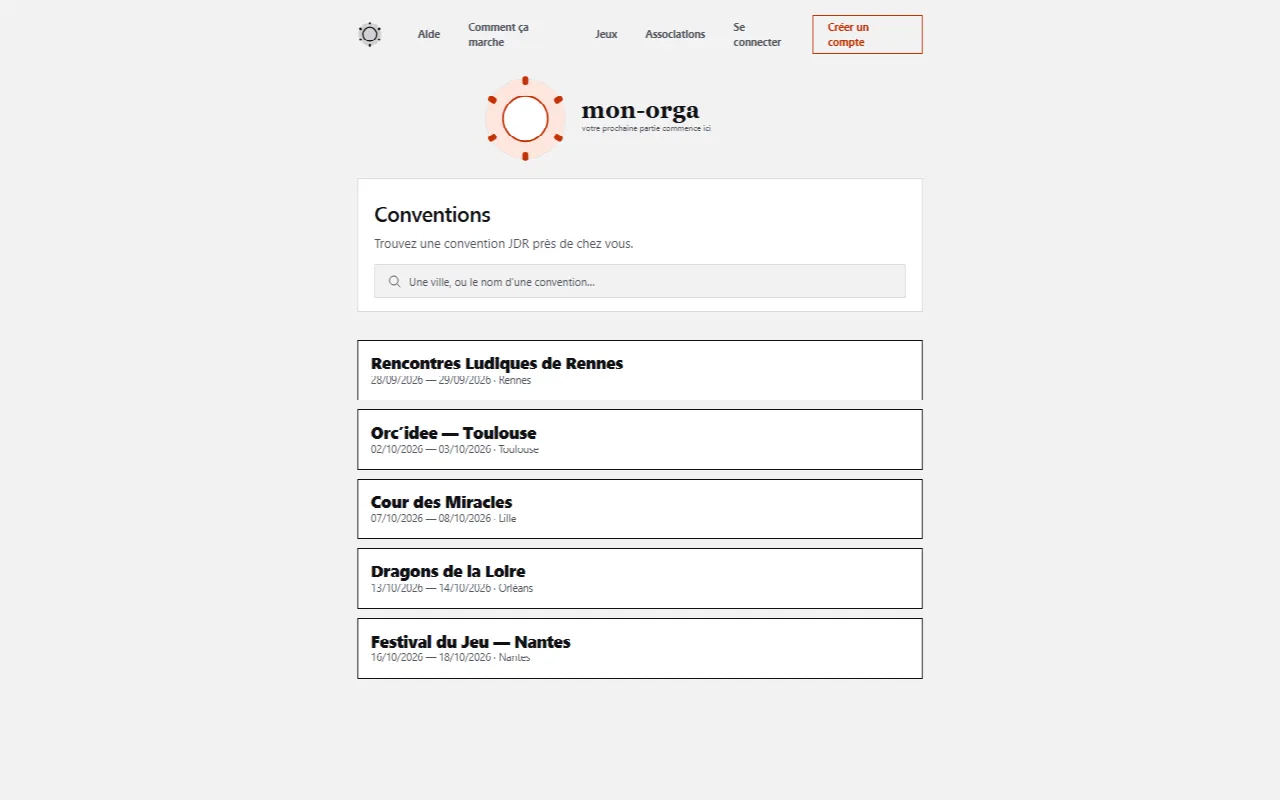
The home page lists upcoming conventions. It can be read without an account.
- In Search for a convention by city or name, type a city name or a few letters of the convention's name.
- For a city, set the Search radius: conventions within that distance appear, closest first. Distance is measured to the venue when the organizer gave its address, otherwise to the convention’s city.
- Click a convention to open its schedule.
Signed in and a few days before a convention, the home page also shows Starting soon near you and Tables looking for players near you: nearby tables that do not yet have enough players.
Search by game
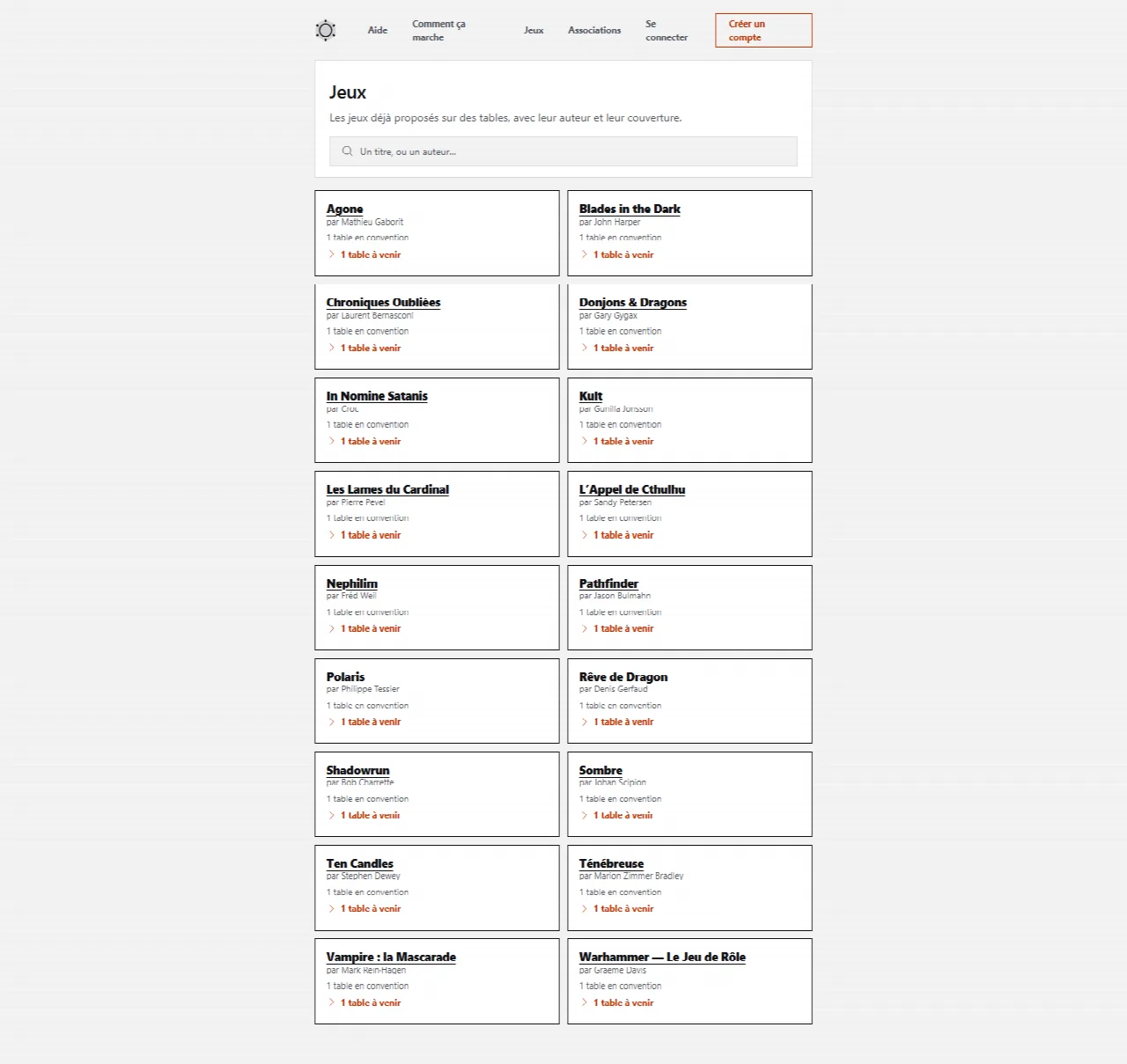
The Games menu lists the games already offered on tables, with their author and cover. The most played at conventions come first; those never played there close the list, with never played at a convention.
- Type a title or an author in Search for a game by title or author.
- Under a game, 3 upcoming tables unfolds in place the tables offering it, across all conventions; a table opens its page.
- The game's title opens its page, which gathers everything known about it on the tool.
A game's page
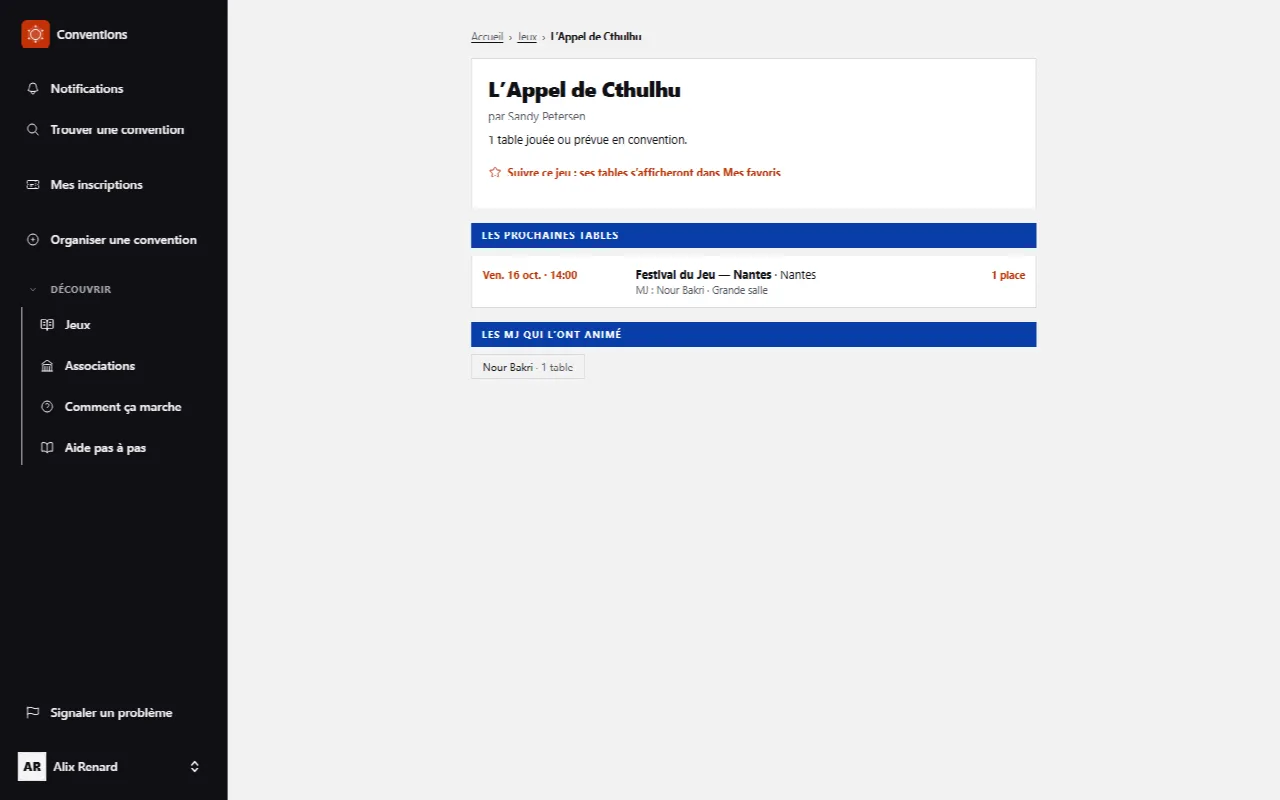
Each game proposed at a convention has its own page, readable without an account. It is also the one a search engine offers to someone looking for where to play a game at a convention.
- You get there through a game’s title in the Games menu, or from a table’s page: All L’Appel de Cthulhu tables, under the game name. Handy when the table is full: you look for the same game elsewhere.
- Upcoming tables lists this game’s upcoming tables, across all conventions: the day and time, the convention and its city, the GM, the room, and the remaining seats - Full when there are none. Each line opens the table’s sheet.
- GMs who ran it names those who have run it, with their number of tables; By the same author suggests their other games.
- Signed in, Follow this game: its tables will show in My favorites adds it to favorites: the button becomes You follow this game, and its open tables show up in My favorites › Favorite games.
A city's conventions
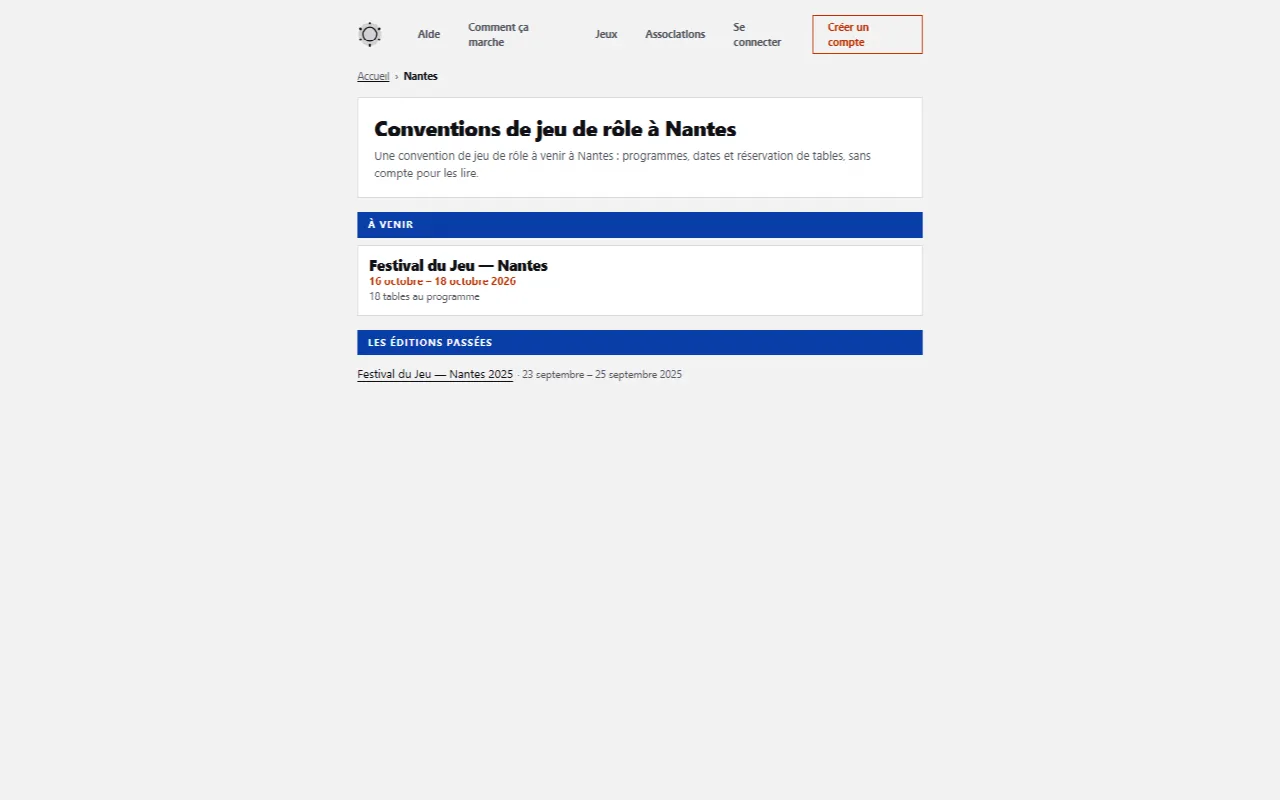
Every city hosting a convention has its page: all its role-playing conventions, upcoming and past, and the associations that meet there.
- On a convention’s page, the name of its city is a link: it opens Role-playing conventions in Nantes.
- Upcoming lists the upcoming ones, with their dates and the number of tables on the schedule - Program in preparation while none is set.
- Past editions keep the others: you can see at a glance whether a convention comes back every year.
Read the schedule
A convention lasts two to four days. Its program opens one day at a time.
- Choose the day in Convention days. The current day is offered by default.
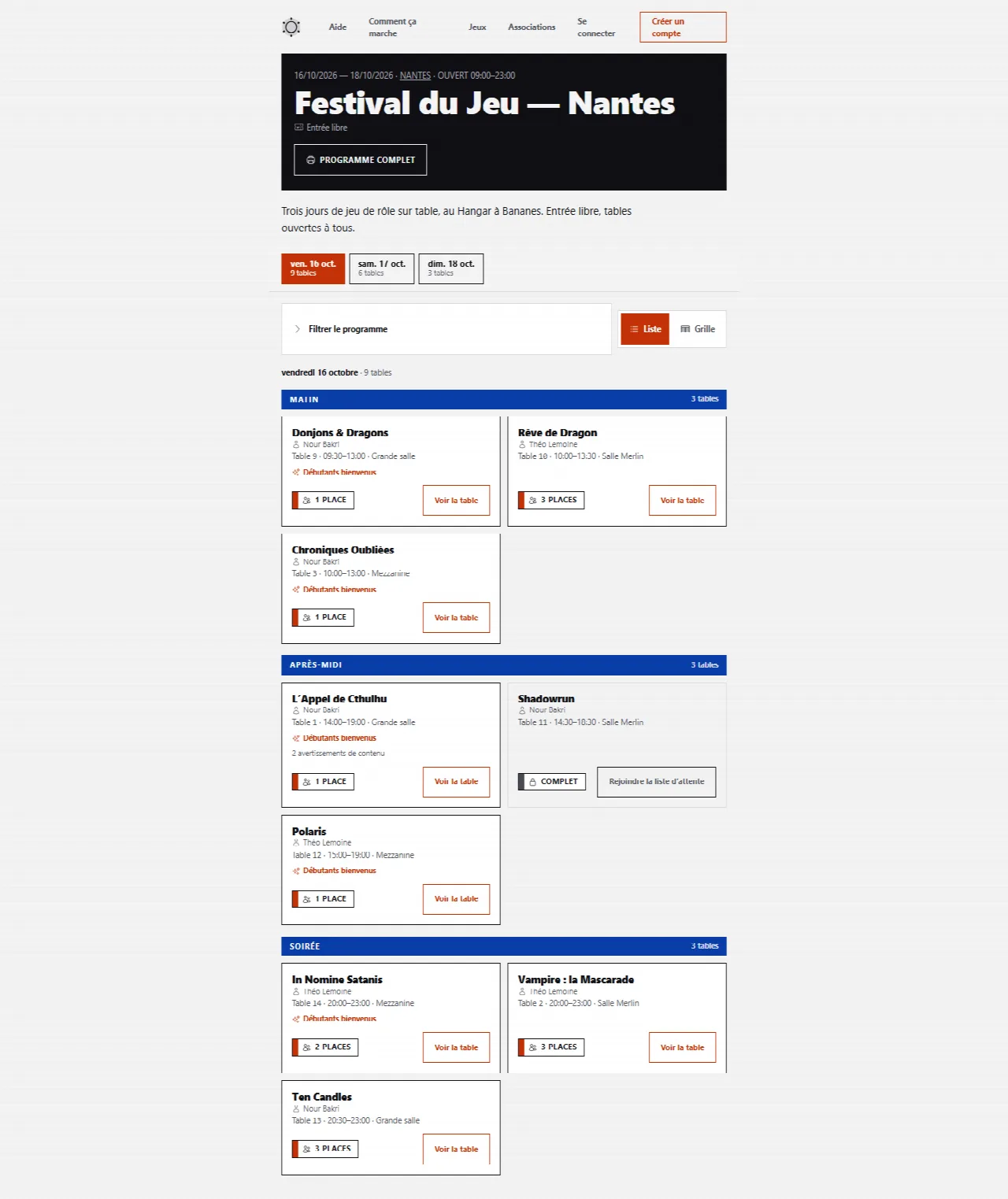
- Tables are sorted into Morning, Afternoon and Evening. Each card shows the game, the GM, the room, the seats left, and whether content warnings are to be read.
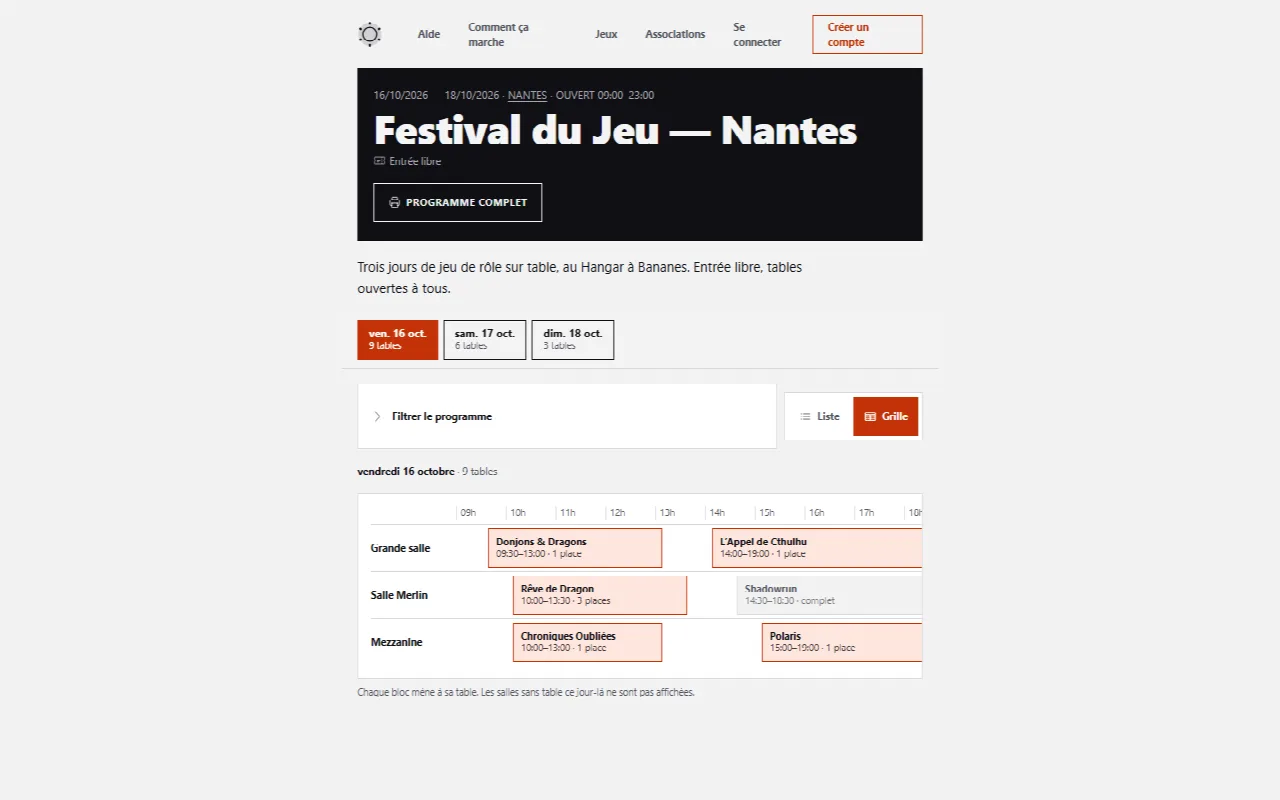
- In Schedule display, Grid answers “what's running at 3 pm, and where”: hours in columns, one row per room. Each block leads to its table.
- Click View the table to read its sheet.
Full program opens a printer-friendly version, with no menu or button. Convention website links to the organizer’s site when they provided one.
Filter the schedule
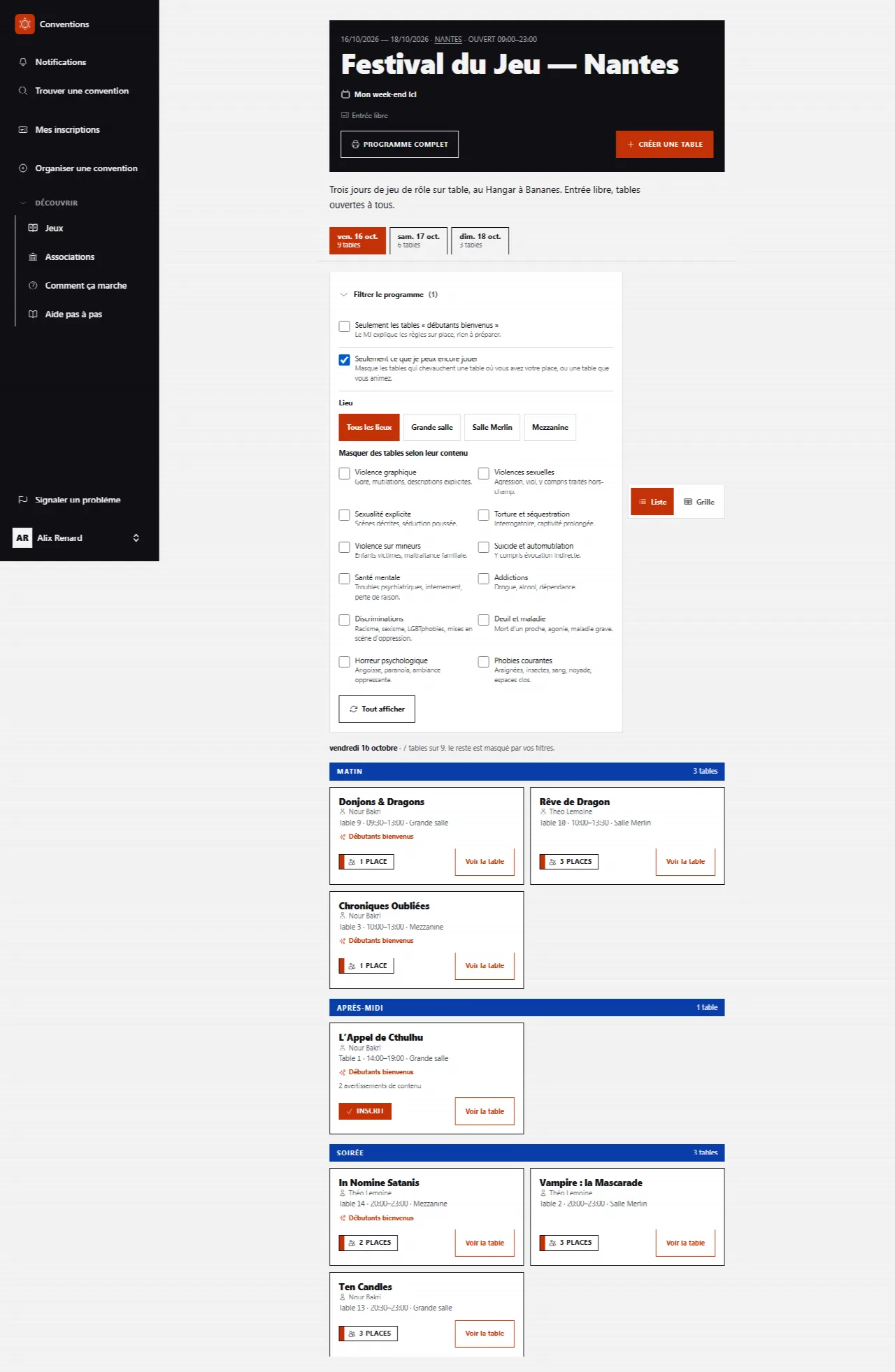
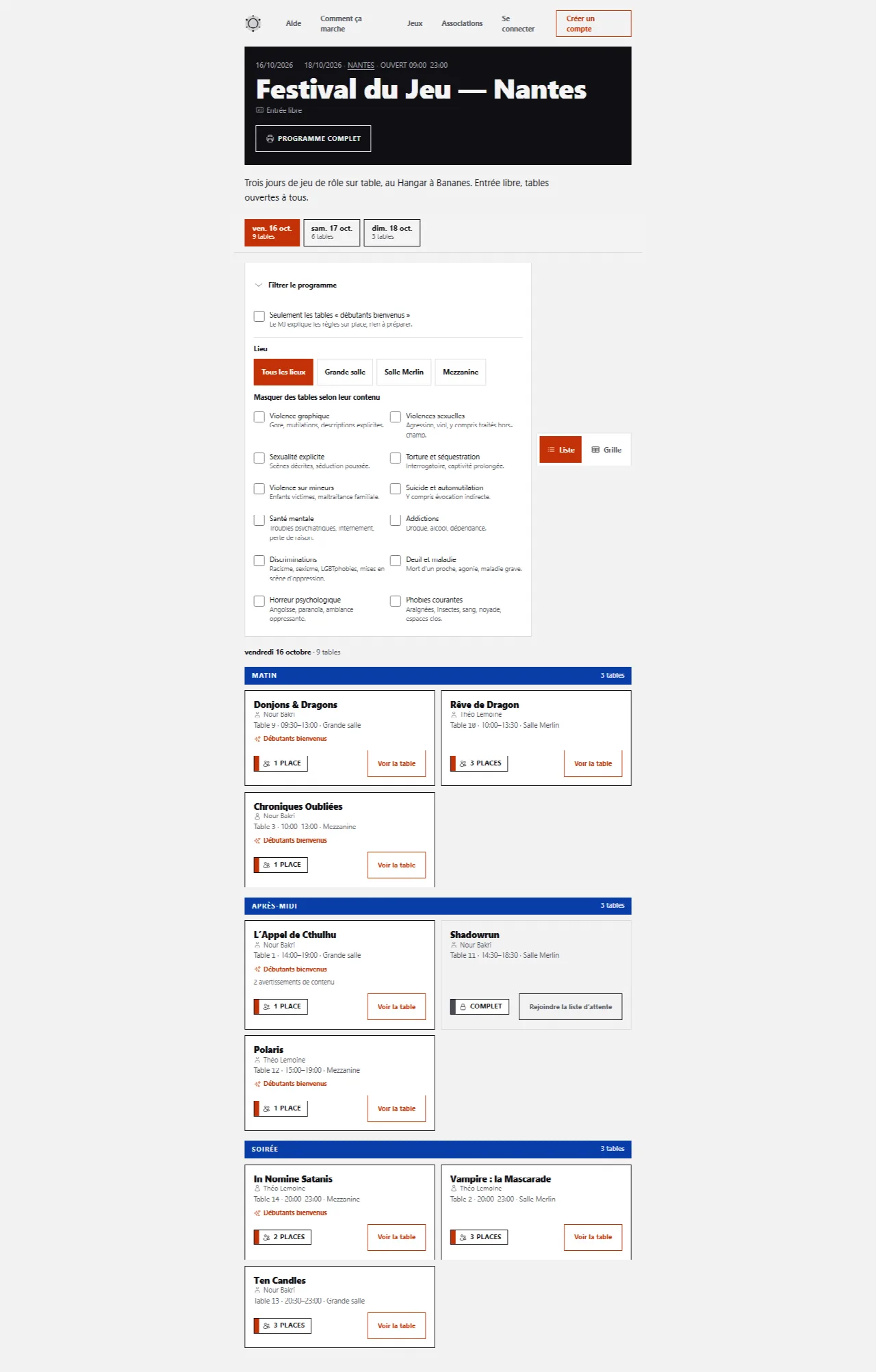
- Expand Filter the schedule, above the tables.
- Only “beginners welcome” tables keeps only those where the GM explains the rules at the table.
- Signed in, Only what I can still play hides tables that overlap a table where you already have a seat, or a table you run - travel between two venues included. It is the question you ask once your first seats are taken, before the confirmation answers “this slot overlaps”.
- Filter by venue appears when the convention has several venues: standing in the media library, you want what is playing here, not the city’s schedule.
- Hide tables by content offers the twelve content warnings. These are exclusions: ticking “torture” hides tables carrying that warning.
What a table’s sheet says
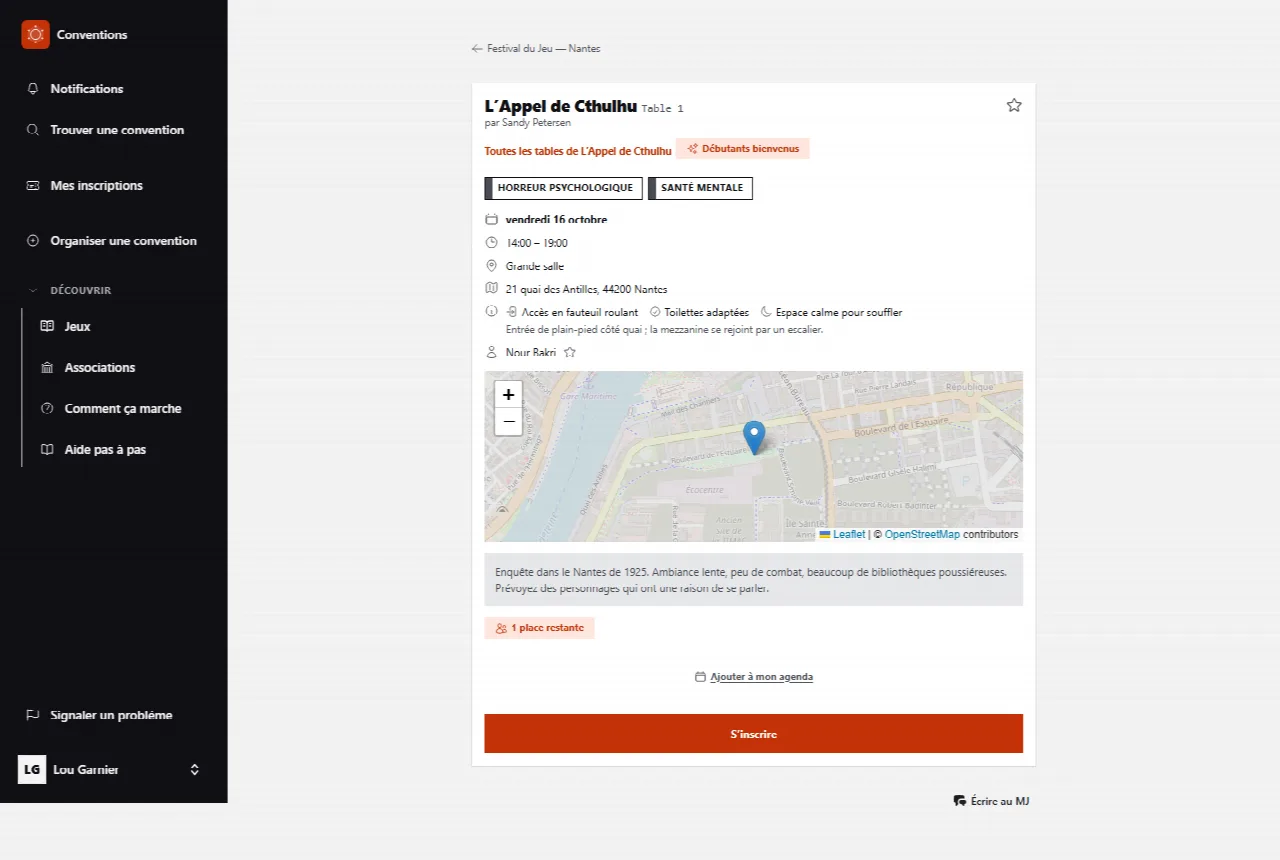
The page gathers everything you need to know before sitting down.
- Day, Hours, Venue and Address, with a Venue access map.
- Venue access, when the organizer has declared it: Wheelchair access, Elevator, Accessible restrooms, Reserved parking nearby, Hearing loop at the front desk, Quiet space to catch your breath, and its details spelled out. What isn’t written hasn’t been declared - which doesn’t mean it’s absent: ask the organizer.
- The GM, the game, and the Table number when the organizer has given one. All … tables opens the game page.
- Content warnings come from a closed list of twelve categories, the same for all GMs: two tables that tick “mental health” are talking about the same thing. Each category is defined on screen.
- Beginners welcome means: The GM explains the rules on the spot, nothing to prepare.
- The Table description is written by the GM: the tone, the setting, what they expect from players.
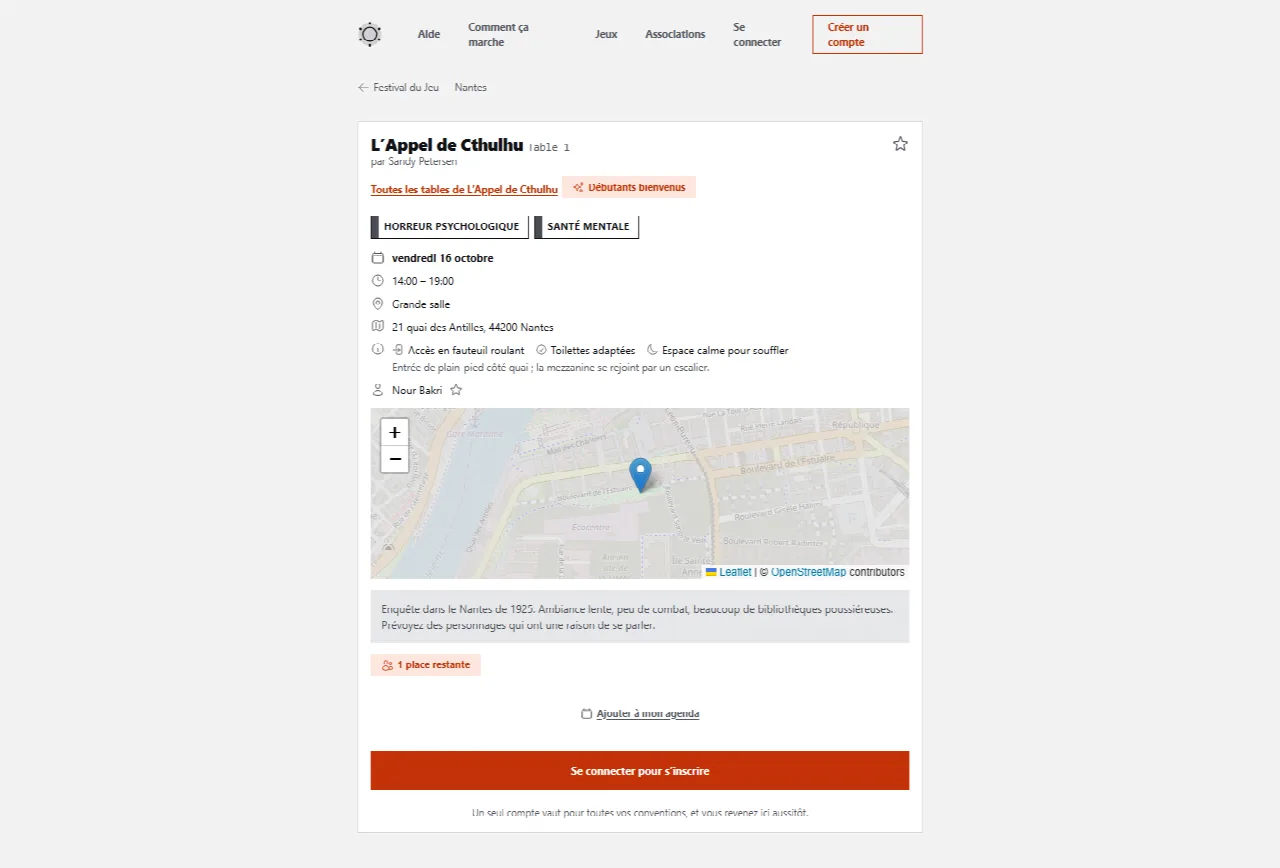
Without an account, the bottom of the page says Log in to sign up. Logged in, it becomes Sign up, and two stars appear: Add this GM to favorites and Add this game to favorites.
Sign up for a table
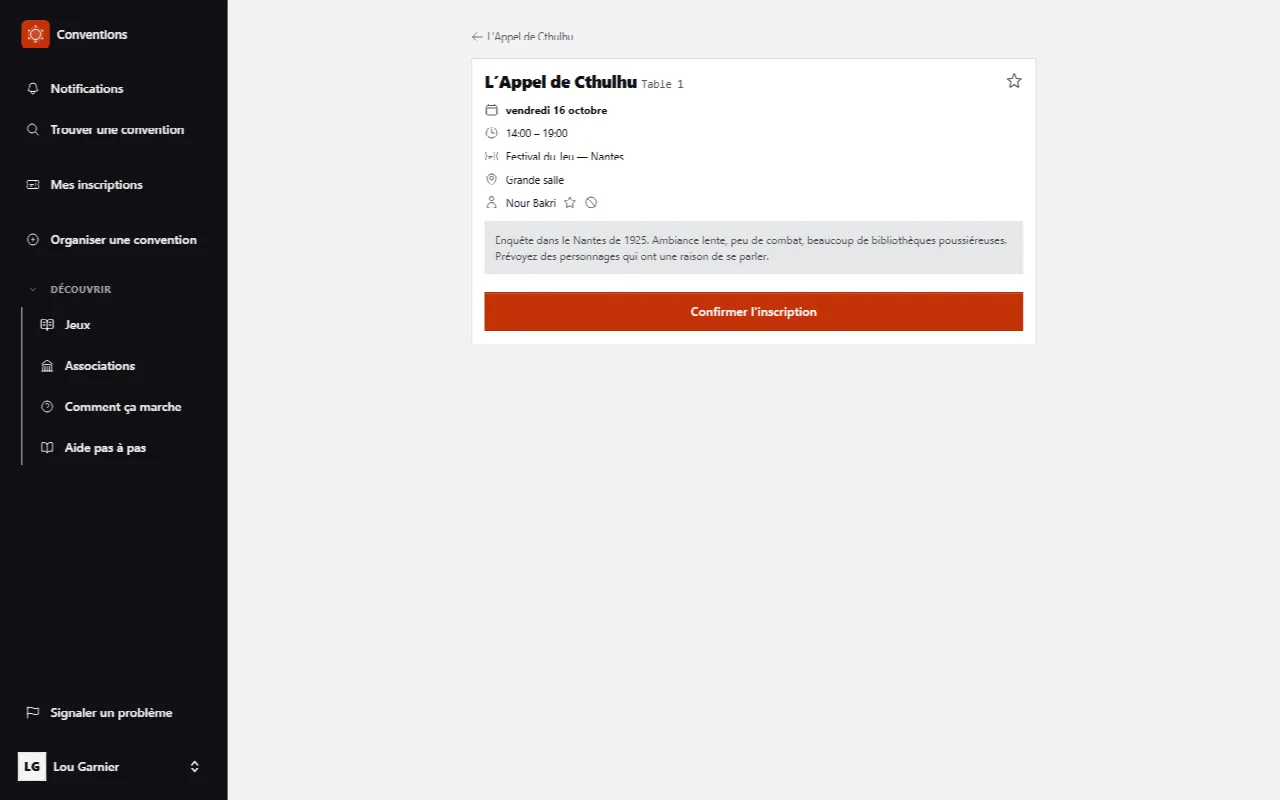
- At the bottom of a table’s sheet, click Sign up. Without an account, the application first has you sign in or create one, then brings you back here.
- The screen recalls the table. Nothing to re-enter: click Confirm the sign-up.
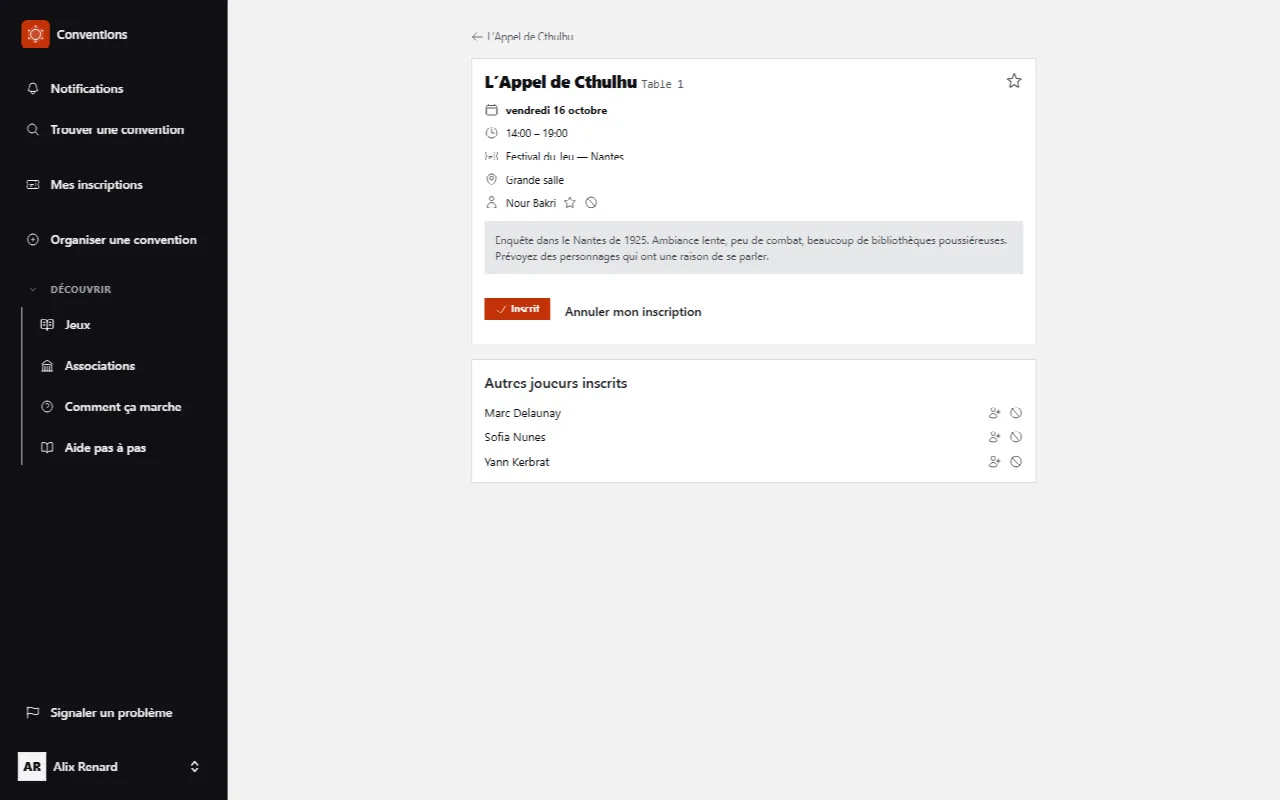
- The page says Sign-up confirmed. Your seat is taken. You'll find it in My sign-ups.
Returning to the page of a table you’re signed up for shows You’re signed up for this table and a View my seat button.
When the app refuses a sign-up, it says why. The cases: the table is cancelled; bookings aren’t open yet (the page then shows a countdown); the table is full (the button offers the waiting list); you’re already signed up; you were marked absent from it; you’re its GM; you avoided this GM or an already signed-up player; you’ve reached the number of tables the organizer allows per person; the slot overlaps another of your games, or a table you run.
The waiting list
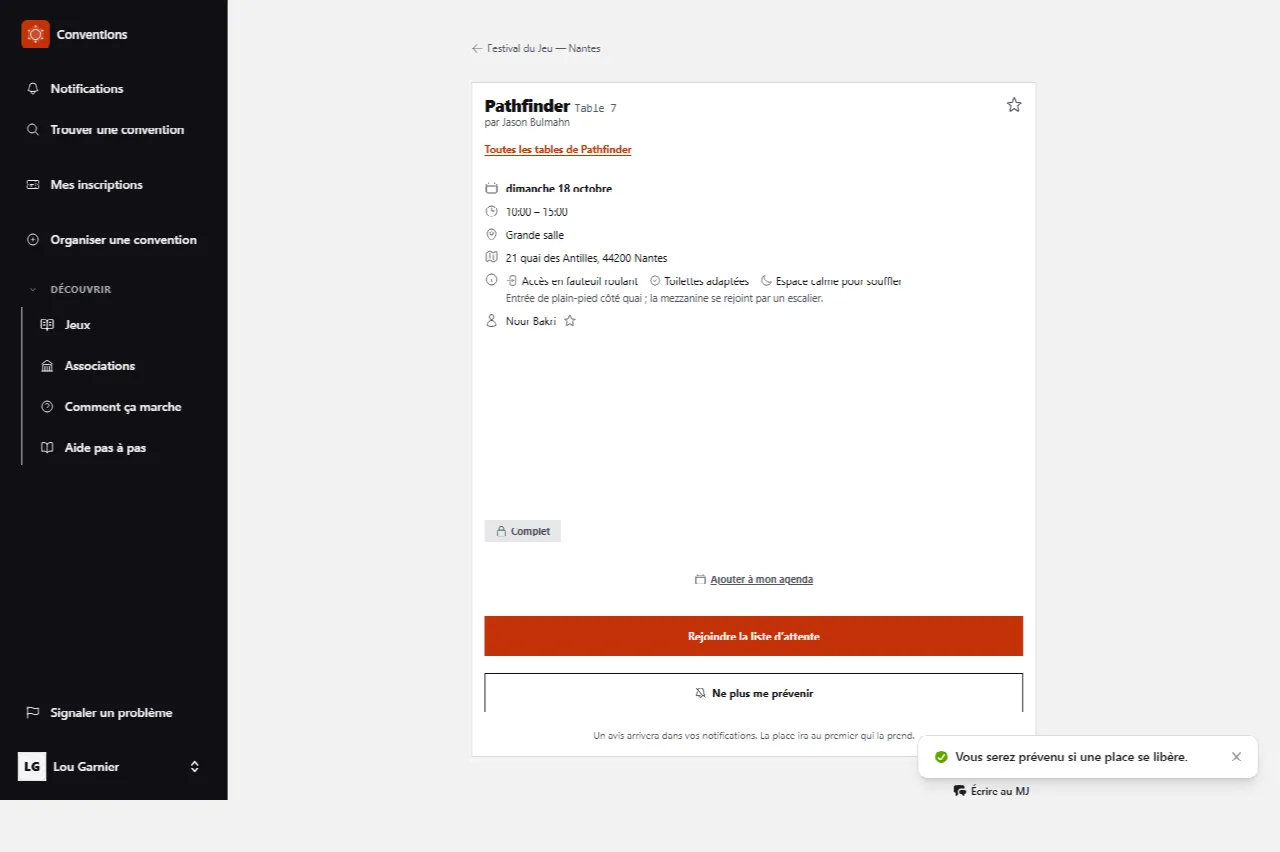
A full table shows Full and offers Join the waiting list in place of “Sign up”.
- Click Join the waiting list, then confirm.
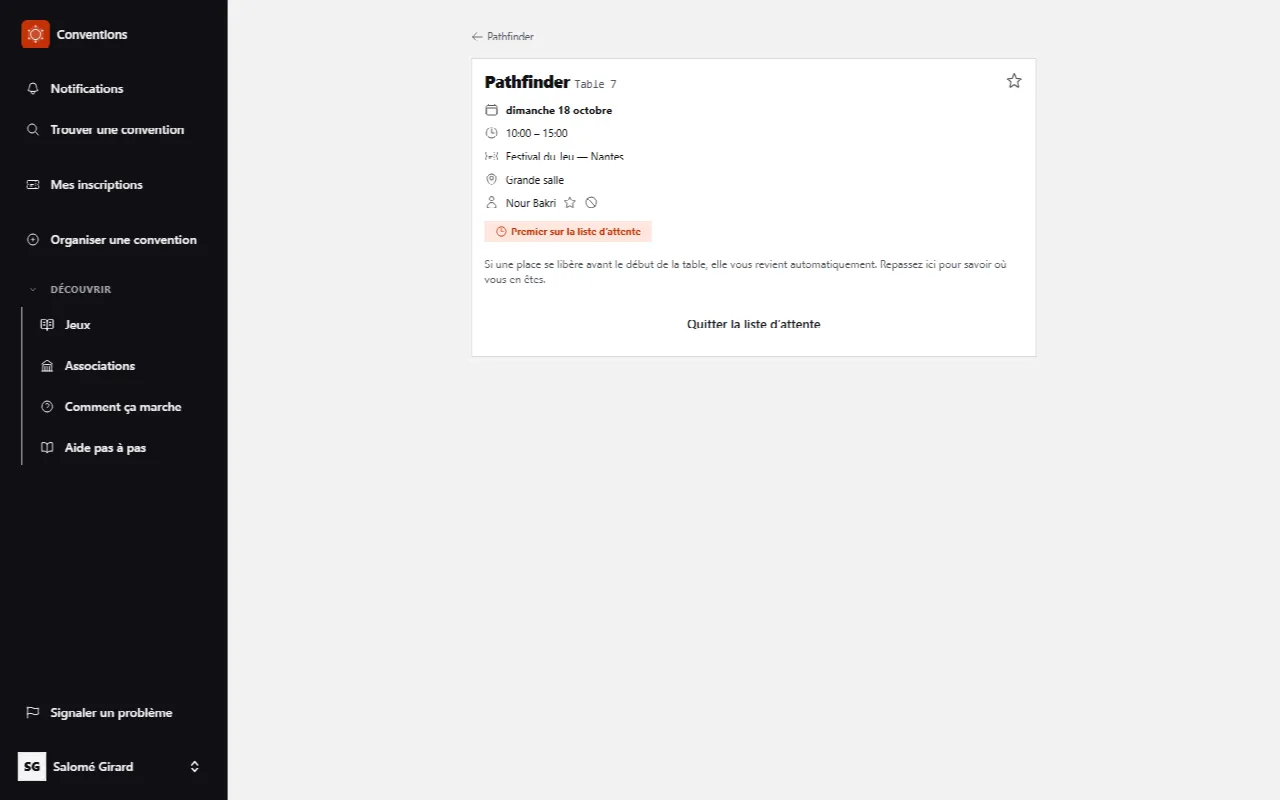
- The page shows You’re on the waiting list. and your rank: First on the waiting list, or One person is already waiting for a seat.
- If a seat opens up before the table starts, it goes back to the first in the queue, who is notified in their notifications. Come back to the page to see where you stand: See my place in the queue.
Leave the waiting list removes you from it. You will lose your position, and will have to start again at the end if you return.
Get notified when a seat frees up
The waiting list seats you automatically. Sometimes you'd rather decide when it happens: you're torn with another table at the same time, or you don't know yet whether you'll be there.
- On the page of a full table, when signed in, click Notify me if a seat opens up.
- The button becomes Stop notifying me: a second click removes the alert.
- If a seat is still free after the waiting list has had its chance, a A seat has opened up notice arrives in your notifications - and on your phone if you enabled it. Join the table: the seat goes to the first person who takes it.
Withdraw
- Open the table’s page, then View my seat - or click the table from My sign-ups.
- Click Cancel my sign-up, and confirm.
If the GM cancelled the table, the page says so: This table was cancelled by the GM. Your sign-up remains recorded, but no longer holds a seat. The app then suggests fallback tables that fit your schedule, and View the other tables takes you back to the program.
Write to the GM
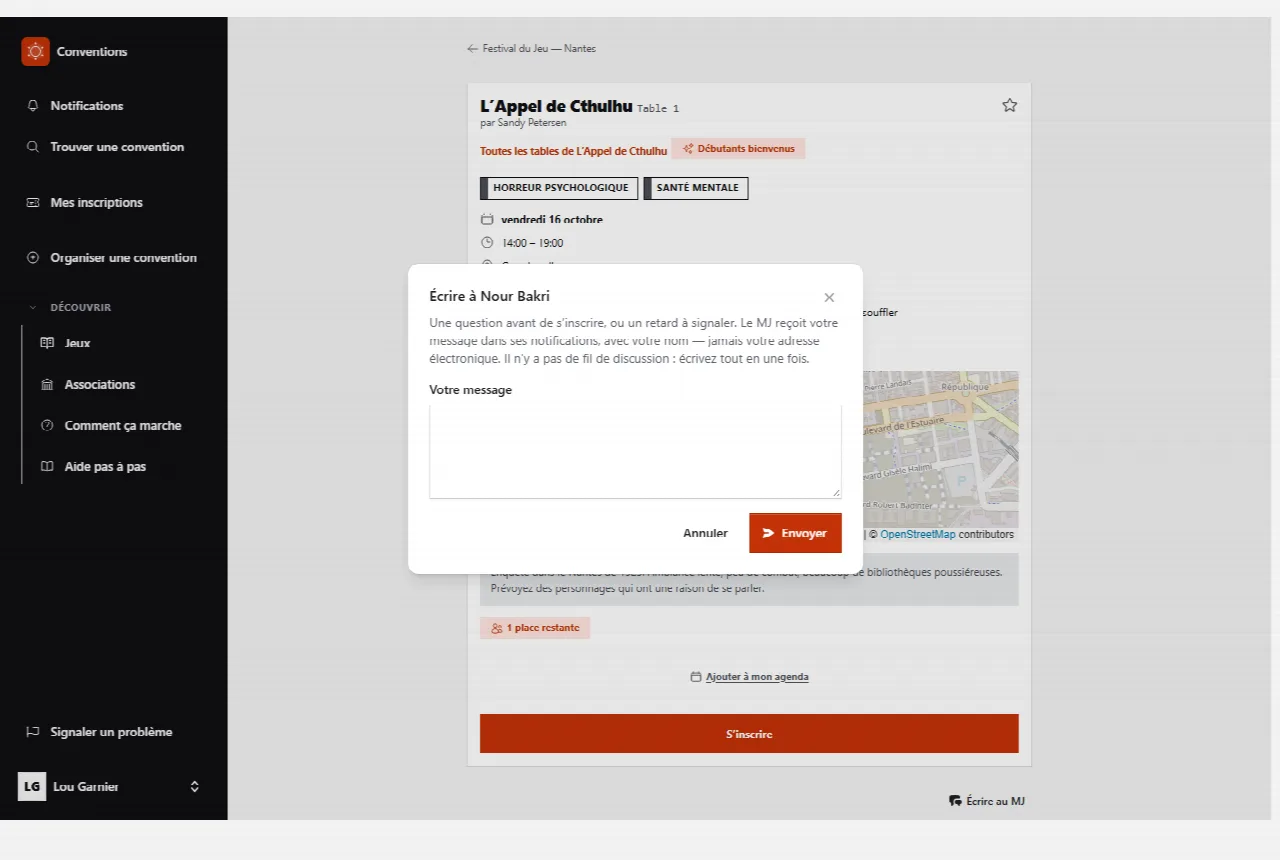
A question before signing up, or a delay to report on the day.
- On the table’s page, logged in, click Write to the GM.
- Write in Your message, then Send. The page says Your message has been sent to the GM.
A word to the GM after the game
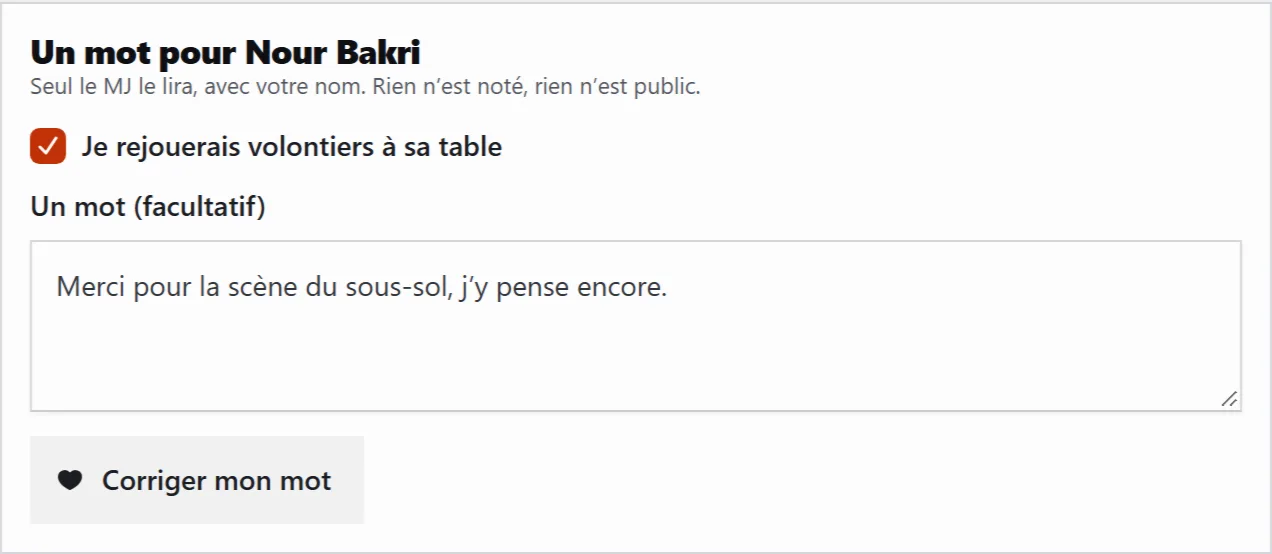
Once the table is finished, those who had a seat can tell the GM they enjoyed the game. Nothing is rated and nothing is public: it’s a thank-you, not a review.
- Open the table’s page, after its end time. The box A word for Nour Bakri appears under the booking.
- Tick I'd gladly play at their table again, write if you like in A word (optional) - 500 characters at most - then Leave this note for the GM.
- The GM receives a notice and reads your note, with your name, on their table page. You can go back to it: Fix my note.
Your first steps
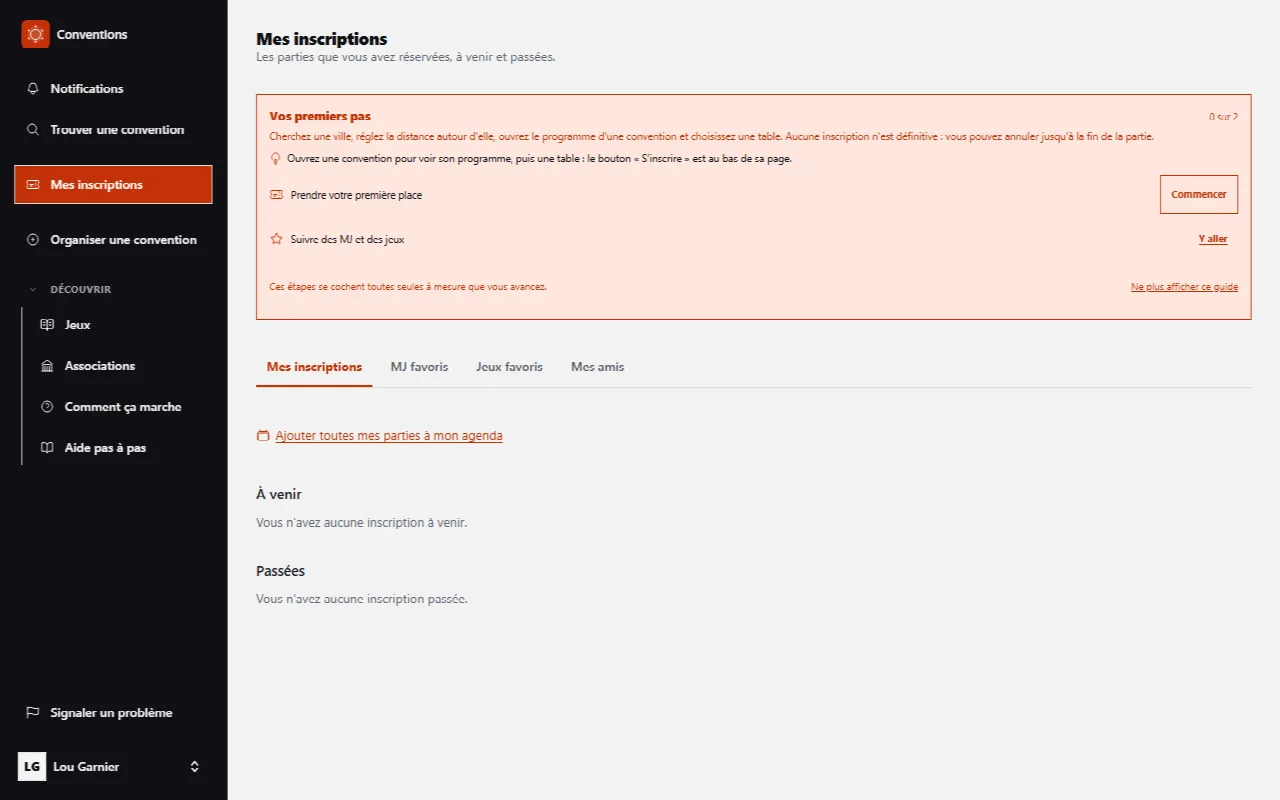
A new account opens My sign-ups on a Your first steps box. It offers two steps, Take your first seat and Follow GMs and games, each with a Start button that leads to the right place.
Steps tick themselves off as you go, and the box goes away once the first game is played. Don’t show this guide again puts it away immediately; it comes back from Settings › Profile › Show the guides again.
Find your sign-ups
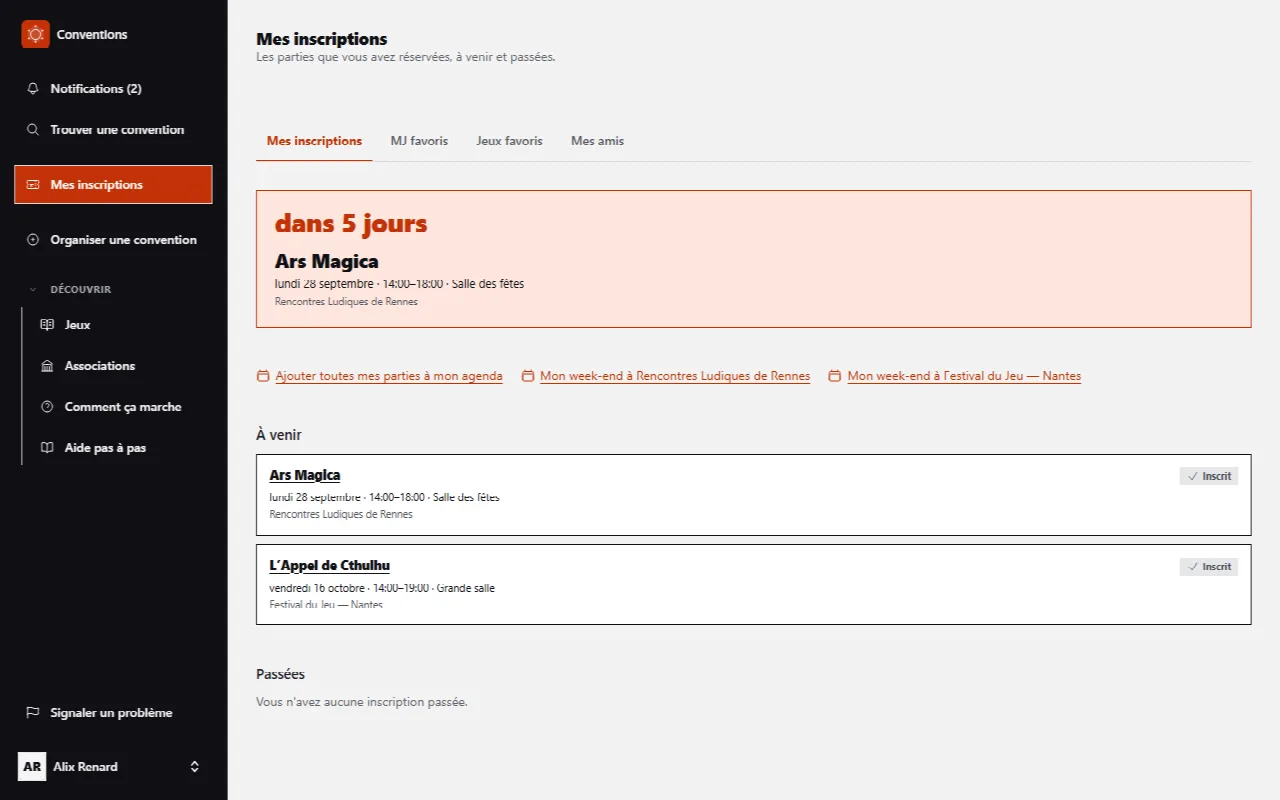
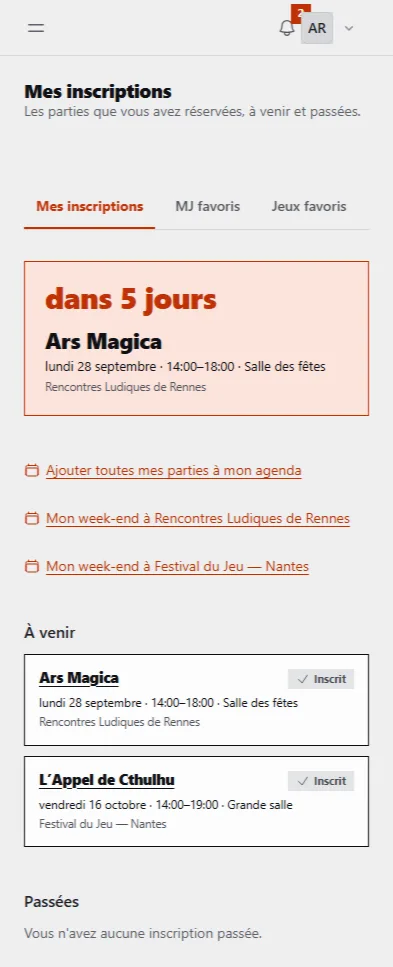
My sign-ups, in the menu, gathers all your seats, across all conventions.
- At the top, your next game: the game, the day, the time, the room, the convention, and the time left - “in 3 days”, “tomorrow”, “in 2 h 15”, then In progress when the time comes. The countdown updates by itself while the page is open. A cancelled table stays at the top, without a countdown: it's what you need to know first.
- Upcoming lists your games from nearest to furthest, with the day, time and room. Past keeps the others.
- Each card carries your status - Signed up, pending, cancelled - and leads to the table’s sheet.
A card can carry a reminder: The game of this table has changed if the GM replaced the game since you signed up; You’re avoiding this table’s GM. or You’re avoiding someone registered at this table. if you avoided someone after signing up. The reminder states the fact and offers Withdraw from this table.
My weekend, day by day
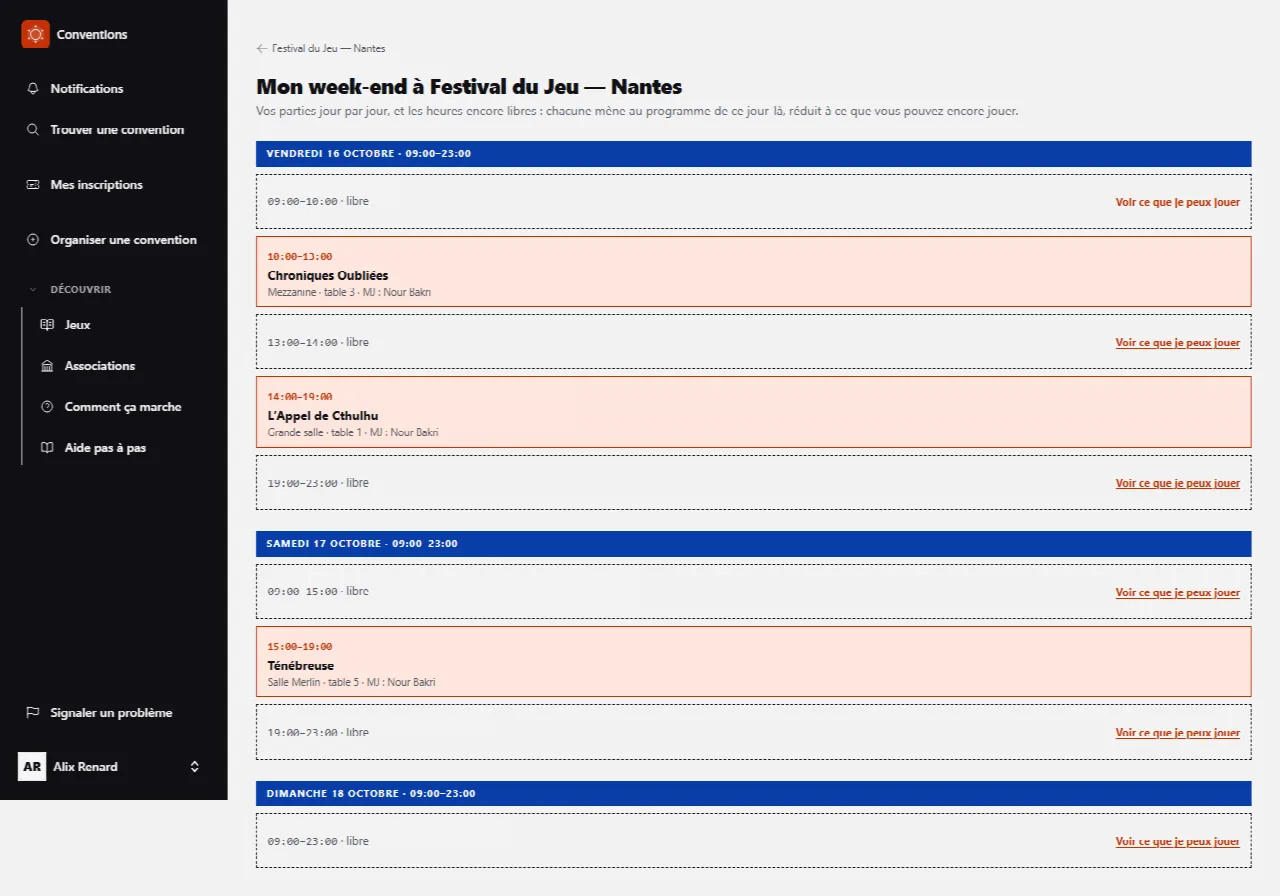
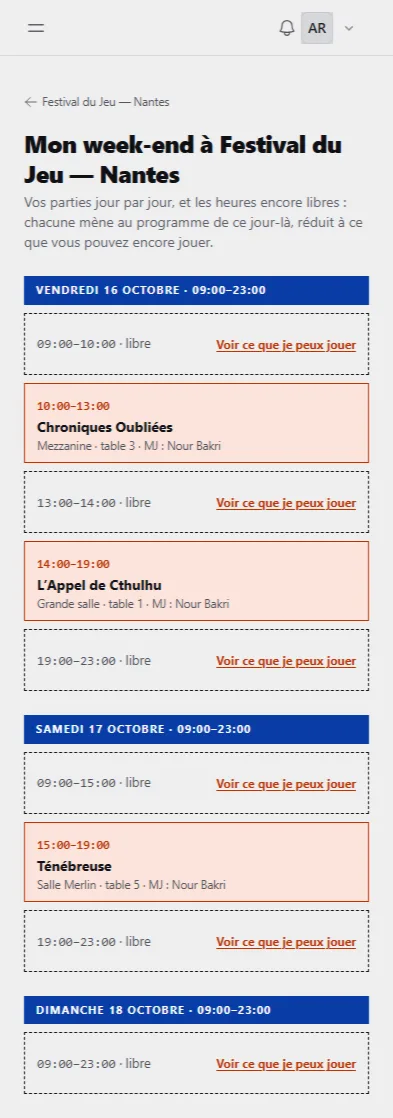
“My sign-ups” says what you’re playing. “My weekend” also says what you have left: the hours when you have nothing yet.
- In My sign-ups, under Add all my games to my calendar, click My weekend at Festival du Jeu - Nantes. From the page of a convention where you have a seat, My weekend here leads to the same place.
- Each day of the convention, with its opening hours, lists your games in order: the time, the game, the room, the table number, the GM. A table you run carries You run; a waiting-list seat carries On the waiting list; a cancelled table, Cancelled.
- Between two games, every gap of an hour or more is marked free. See what I can play opens that day's schedule, reduced to the tables compatible with your seats.
Convention day
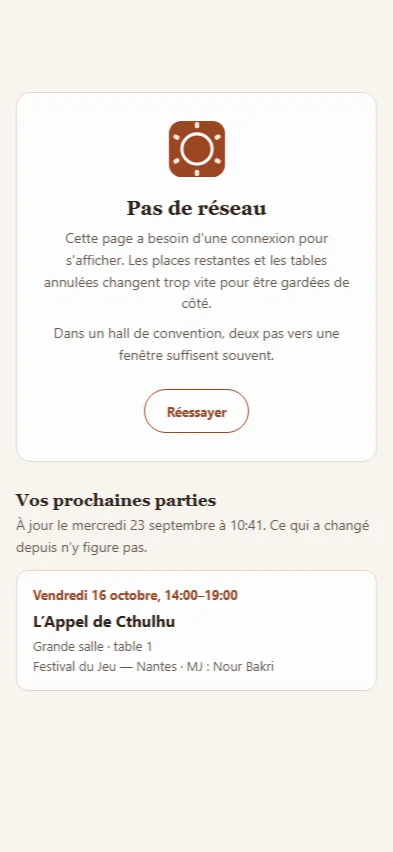
On site, everything is done phone in hand.
- My sign-ups says where to go and in how long. It is the screen to open on arrival.
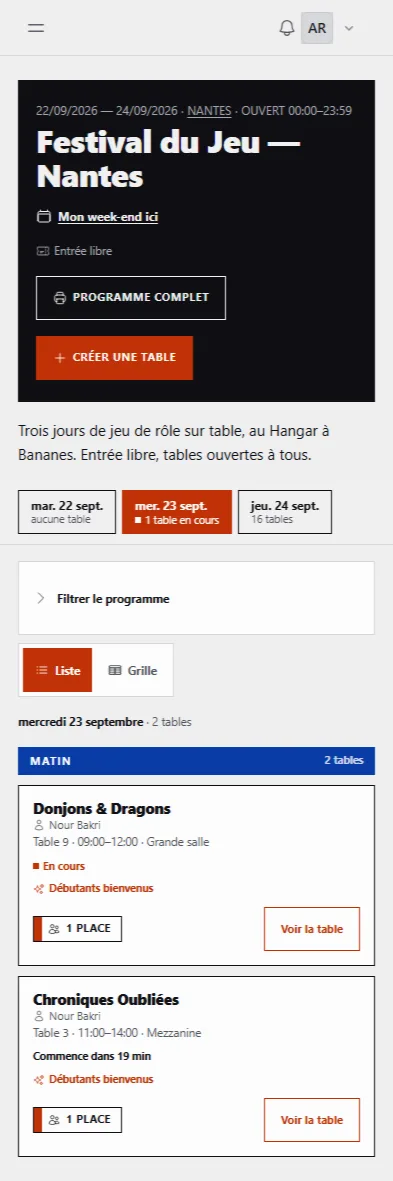
- To find a game that’s about to start, open the convention’s program: it opens on the current day. The Starting soon, players are missing block lists the tables starting within two hours that don’t have enough players yet: those are the ones you can still save by sitting down.
- With several venues, Filter by venue keeps only what is playing in the building where you are.
- Running late? Write to the GM from the table page, in one sentence.
Favorite GMs and games
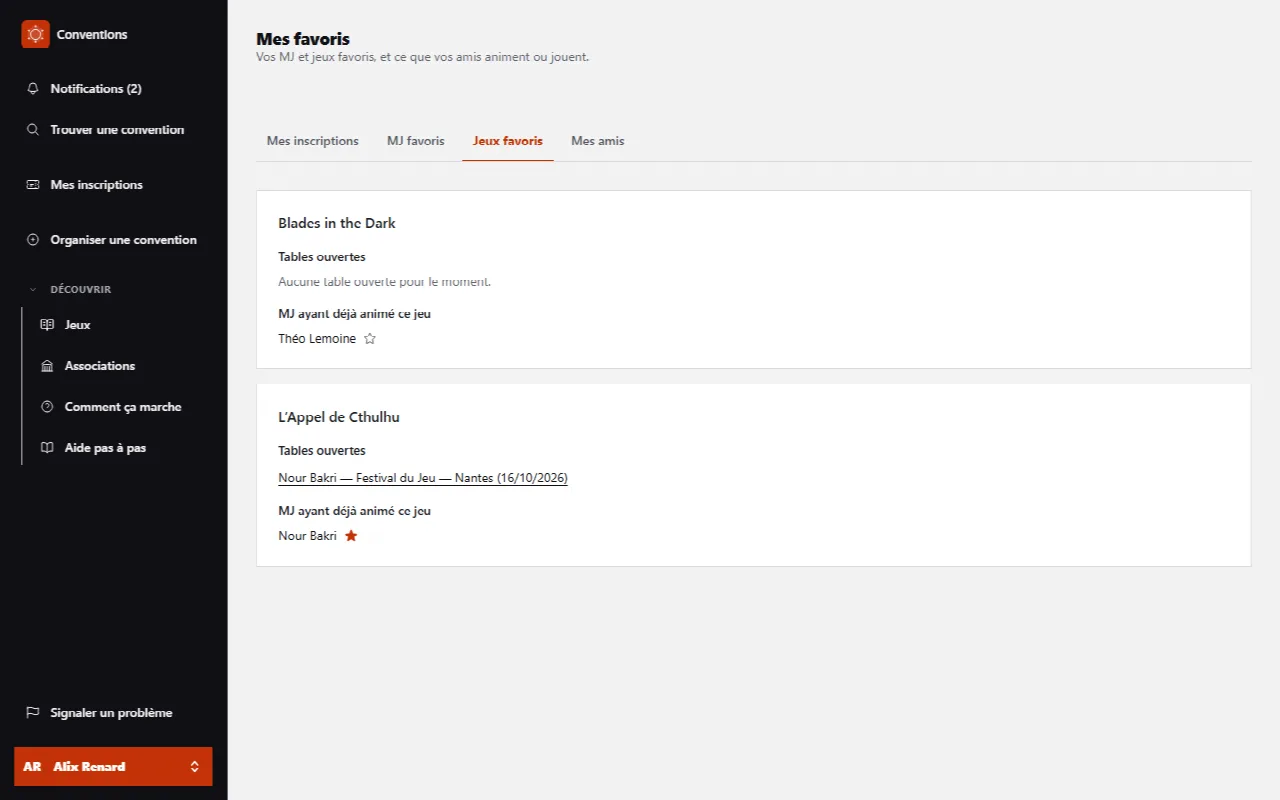
Favoriting a GM or a game makes their open tables appear in My favorites, across all conventions.
- On a table’s page, click the star Add this GM to favorites or Add this game to favorites. A second click removes the favorite.
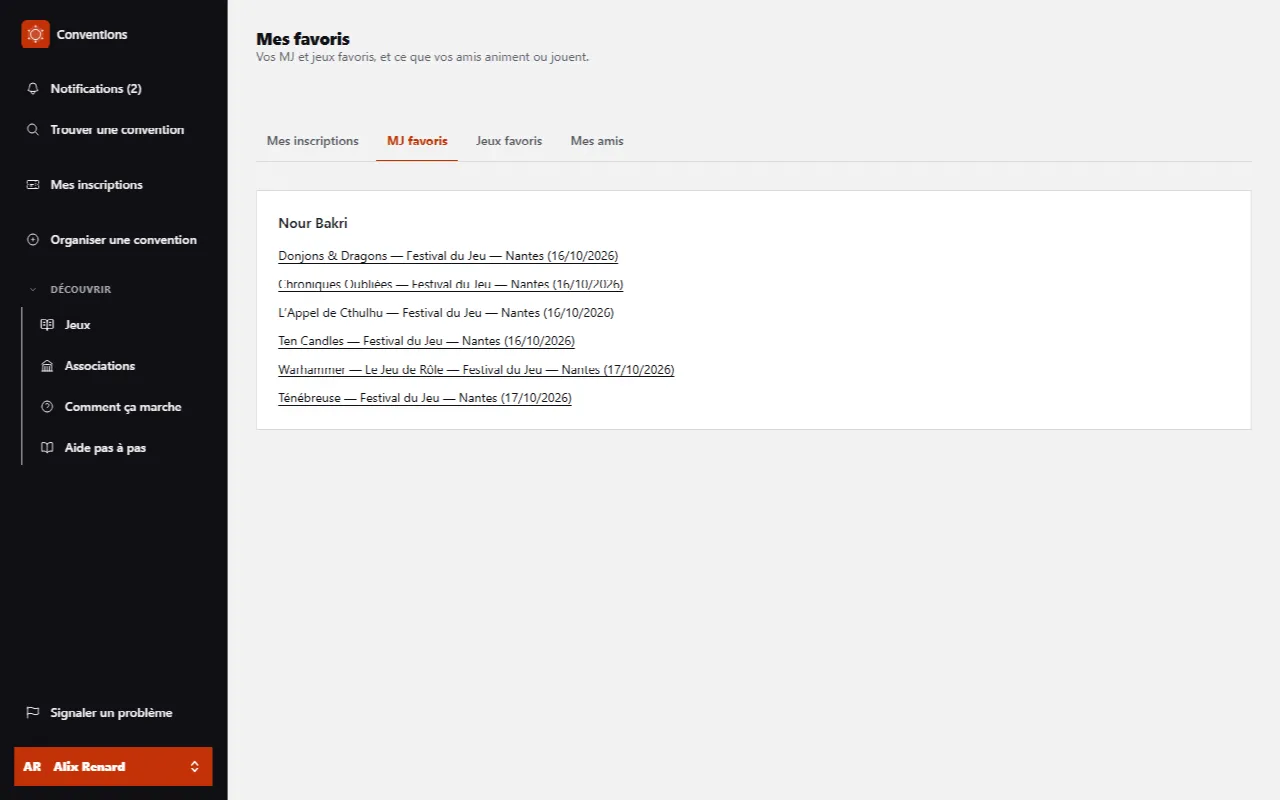
- Open your account card (your name at the bottom of the menu, the avatar at the top right on a phone), then My favorites. The Favorite GMs tab shows, for each followed GM, the open tables they are running right now.
- The Favorite games tab shows the open tables for each followed game, and all the GMs who have already run that game on the tool - with a star to follow them in turn.
Friends and avoided people
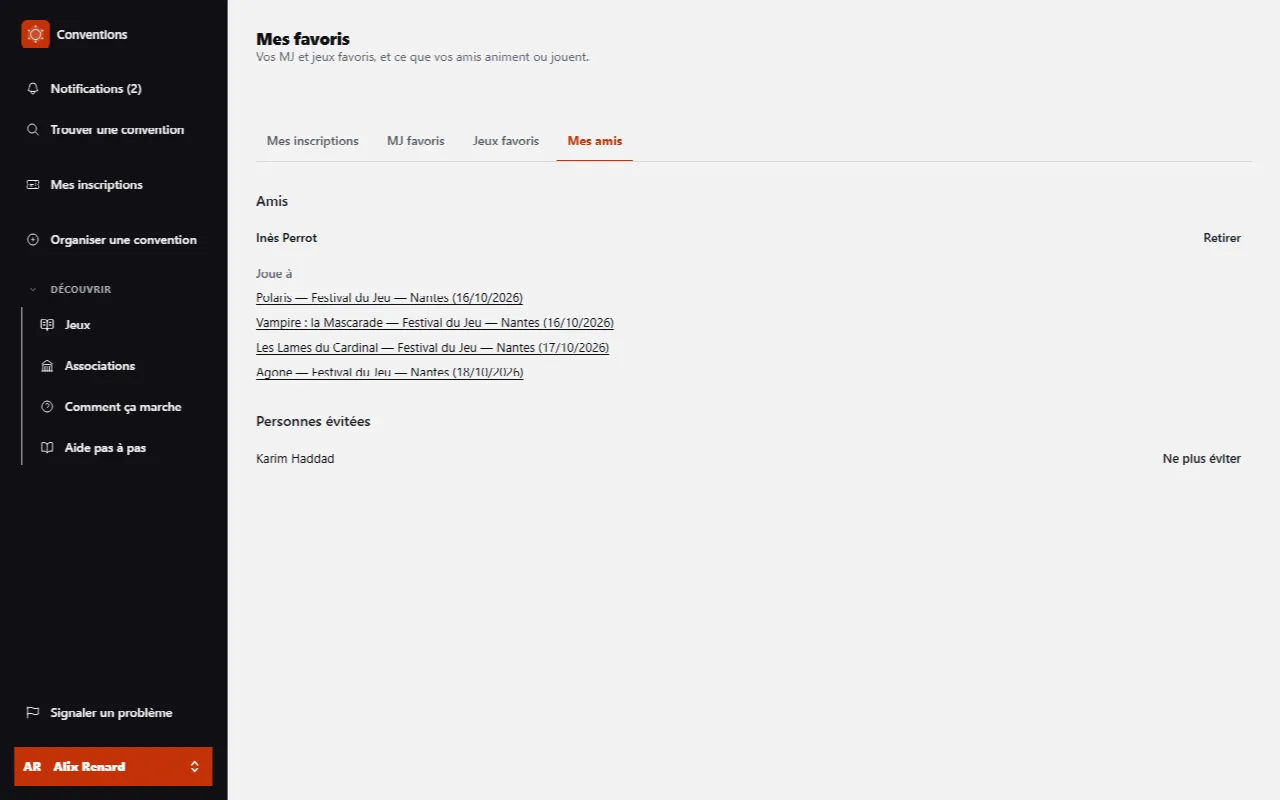
A friend is mutual and lets you see where they play. An avoided person is only avoided on your side: they are never notified, and the block only affects your own sign-ups.
- On the page of a table you’re registered for, the Other registered players list has a button to add each person as a friend and one to avoid them. The GM has their own: Avoid this GM.
- Open your account card (your name at the bottom of the menu, the avatar at the top right on a phone), then My favorites › tab My friends. Each friend appears with the open tables where they play and those they run.
- Further down, People avoided lists who you avoid. Stop avoiding cancels.
Notifications
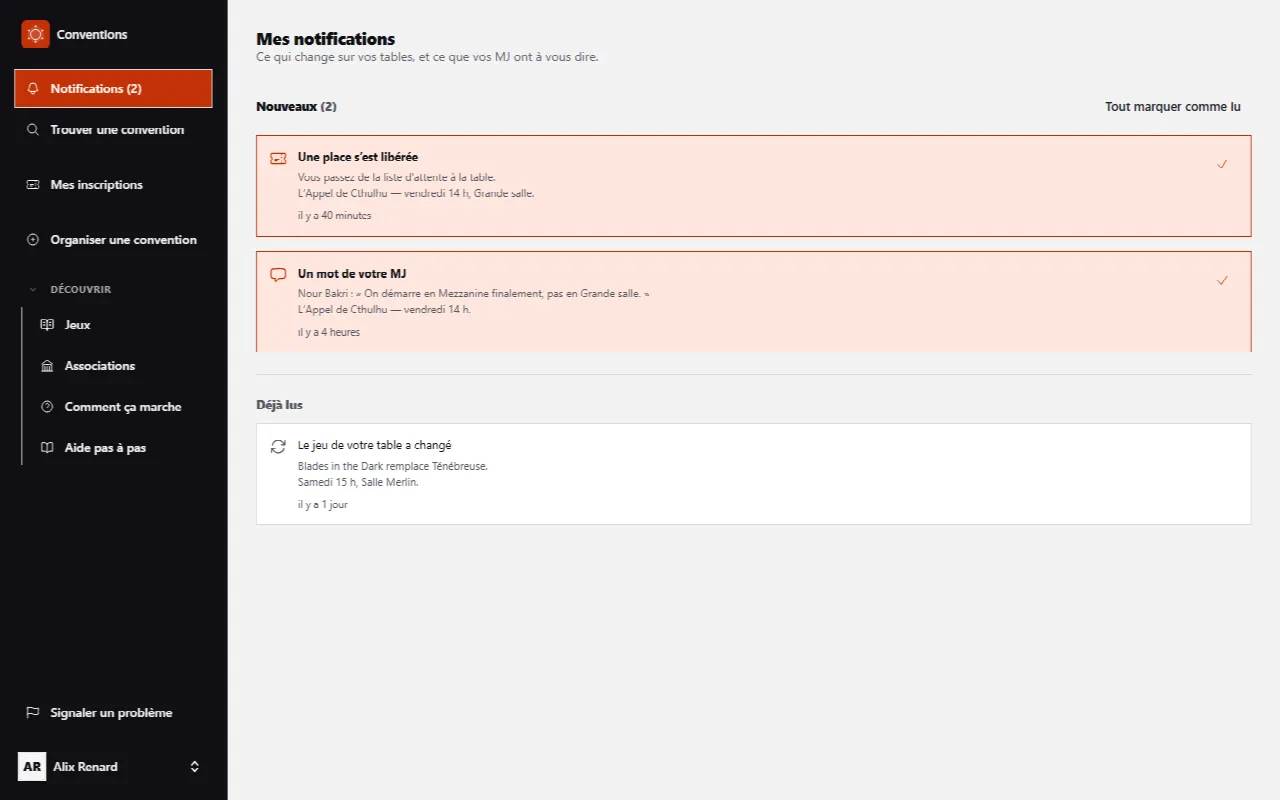
A seat freed at a table you were waiting on, a word from your GM, a canceled table, a game that changes: notices arrive in the bell, at the top of the menu. The application sends nothing else: no email to sort through.
- Click Notifications. The New notices come first, then the Already read.
- Click a notice to go to the table it is about. The tick on the right files it as read; Mark all as read files everything.
- On your phone, notices can also arrive as push notifications: in the Receive notifications on this device box, click Enable and accept the browser’s request.
The reminder before the game. Once notifications are enabled on a device, it also receives a reminder half an hour before each of your games, with the room and table number. This reminder exists only on the device: it is not added to the notifications list.
My stats and your achievements
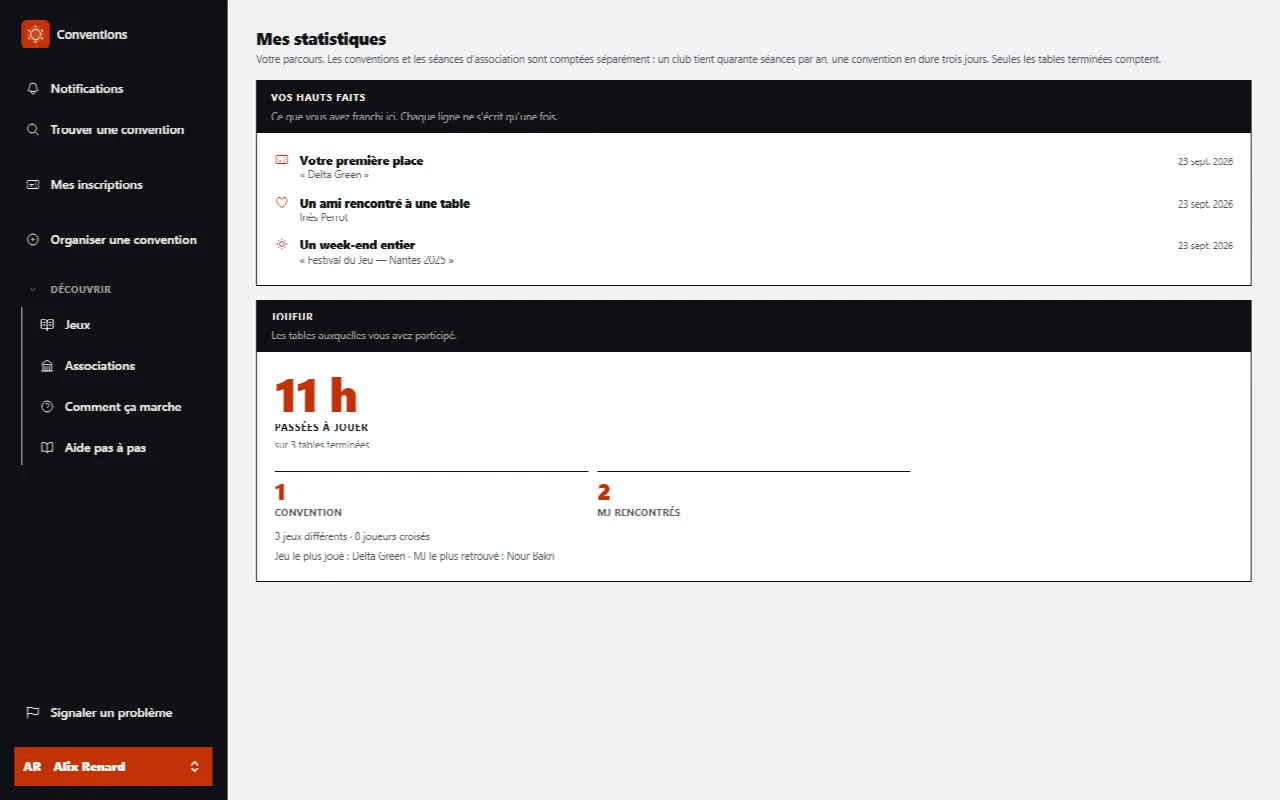
Open your account card (your name at the bottom of the menu, the avatar at the top right on a phone), then My stats: your journey is counted there. Only finished tables count.
- The Player panel gives the tables you took part in, the GMs met and the hours spent playing.
- Conventions and association sessions are counted separately: a club holds forty sessions a year, a convention lasts three days.
- Your achievements lists what you have achieved here - first seat taken, first table played to the end, the same GM met again at another convention… Each line is written only once, with its date.
Take your games into your calendar
Three calendar files, to open with any calendar app.
- A table: Add to my calendar on its page.
- A whole convention: Add everything to my calendar on its printable program (Full program).
- All your games: Add all my games to my calendar at the top of My sign-ups.
Manage your account
Open your account card (your name at the bottom of the menu, the avatar at the top right on a phone), then Settings.
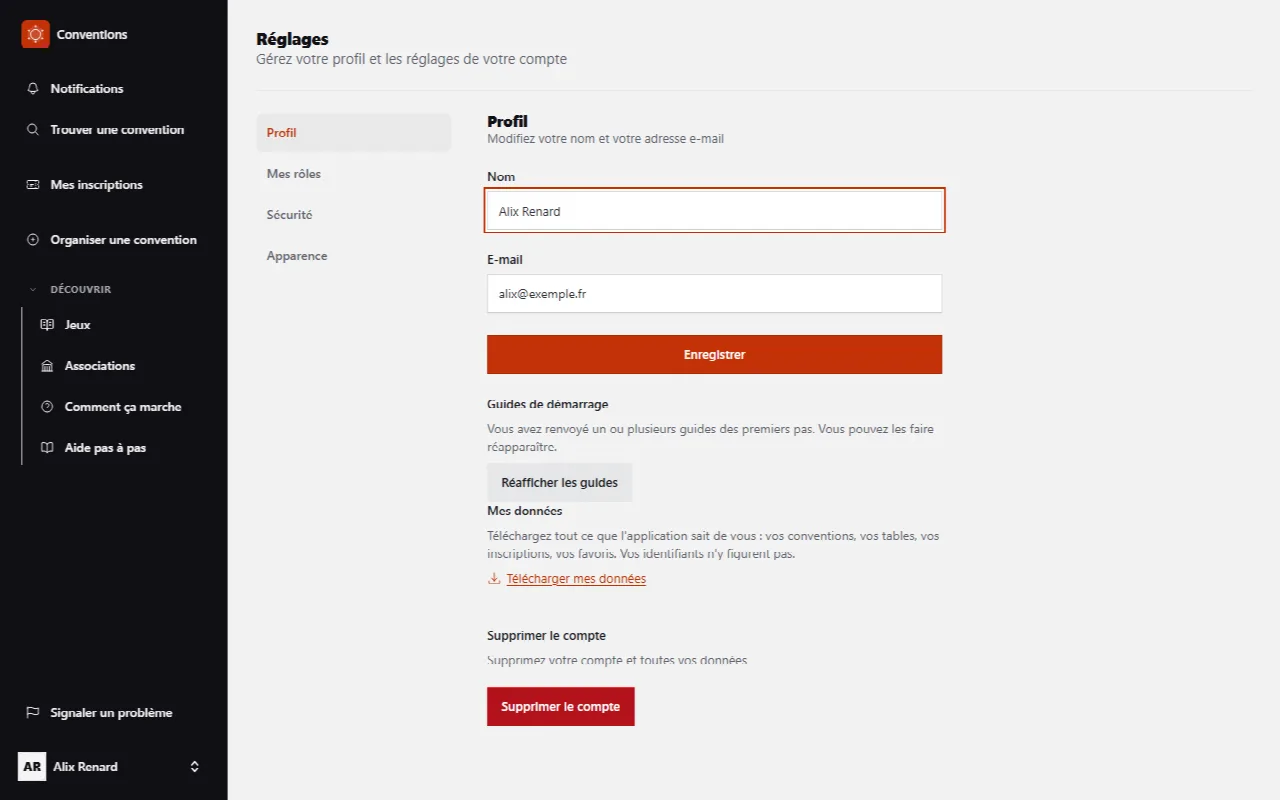
- Profile: your Name and your Email, then Save.
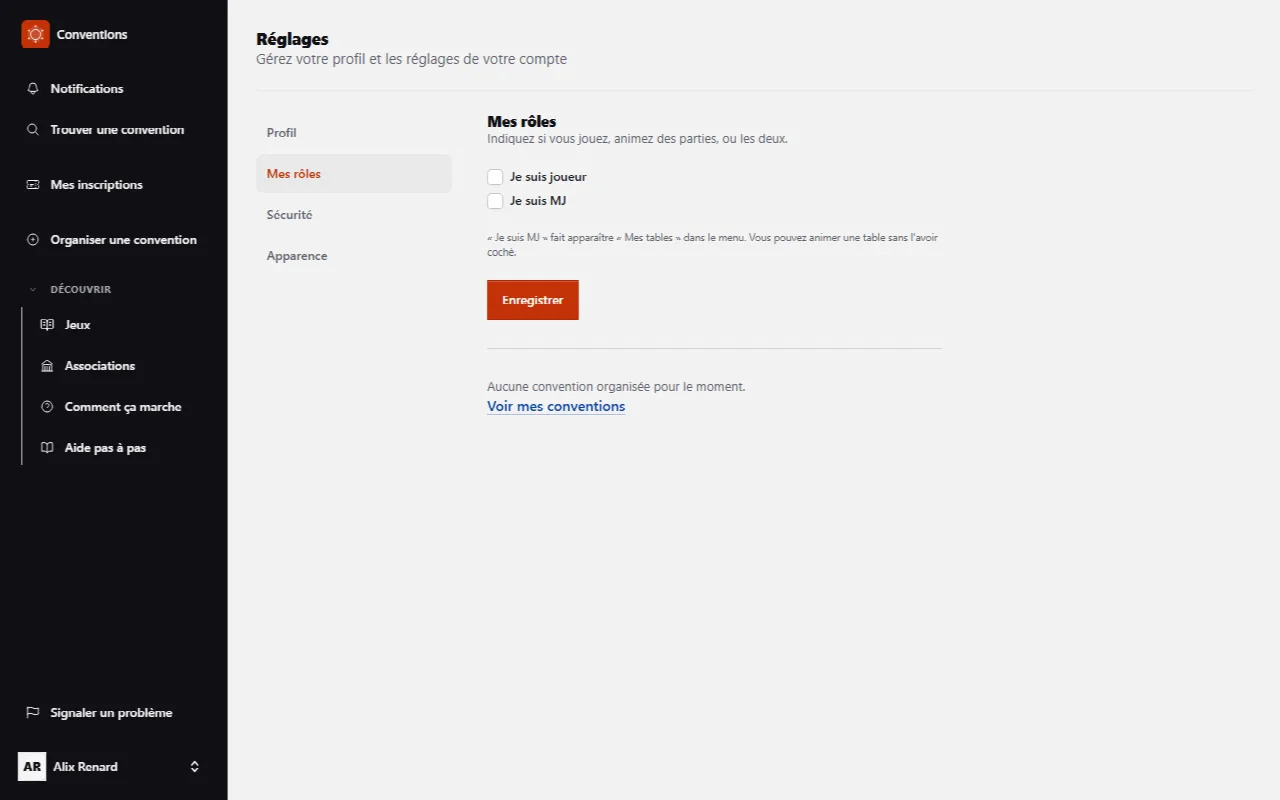
- My roles: I'm a player, I'm a GM. “I’m a GM” adds “My tables” to the menu. You can run a table without ticking it.
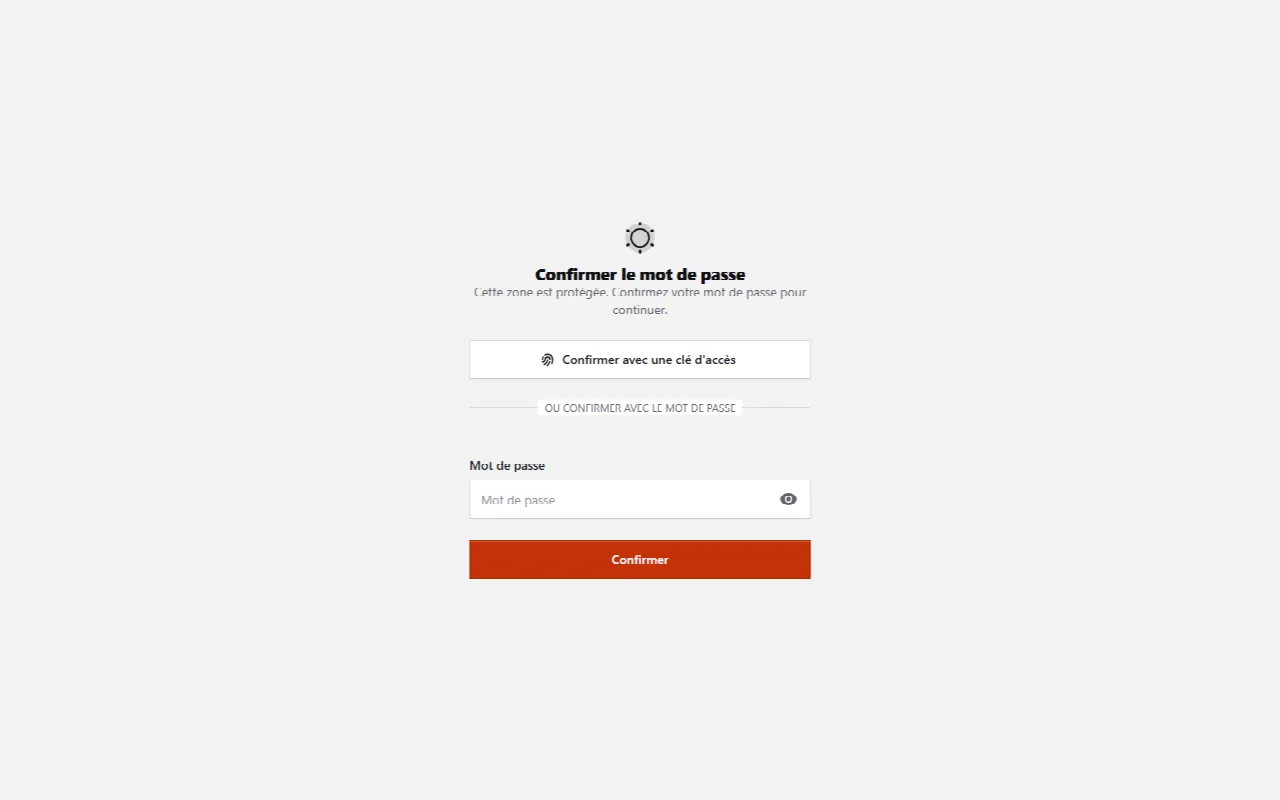
- Security: Update password (Current password, New password, confirmation); Two-factor authentication by app, with its backup codes; Passkeys to sign in without a password (Add a passkey, name it, confirm on the device).
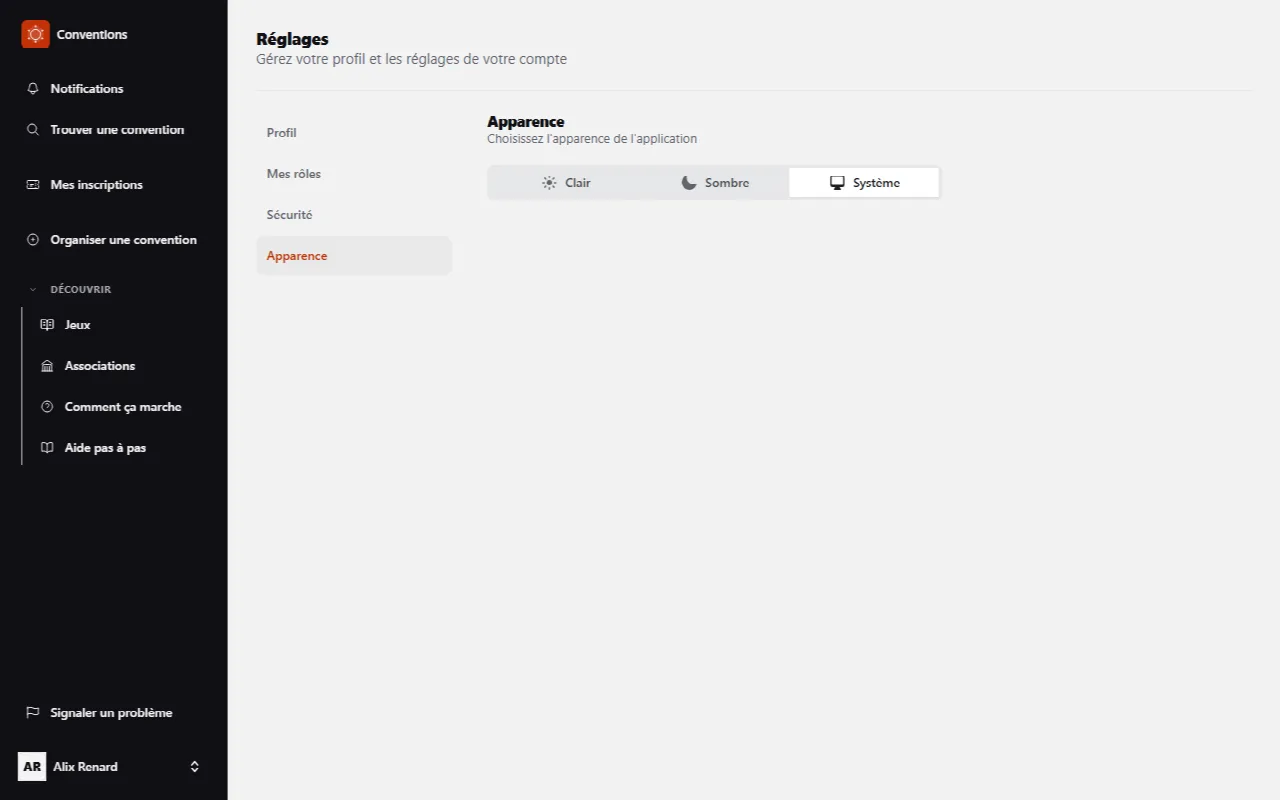
- Appearance: Light, Dark or System.
Report a problem
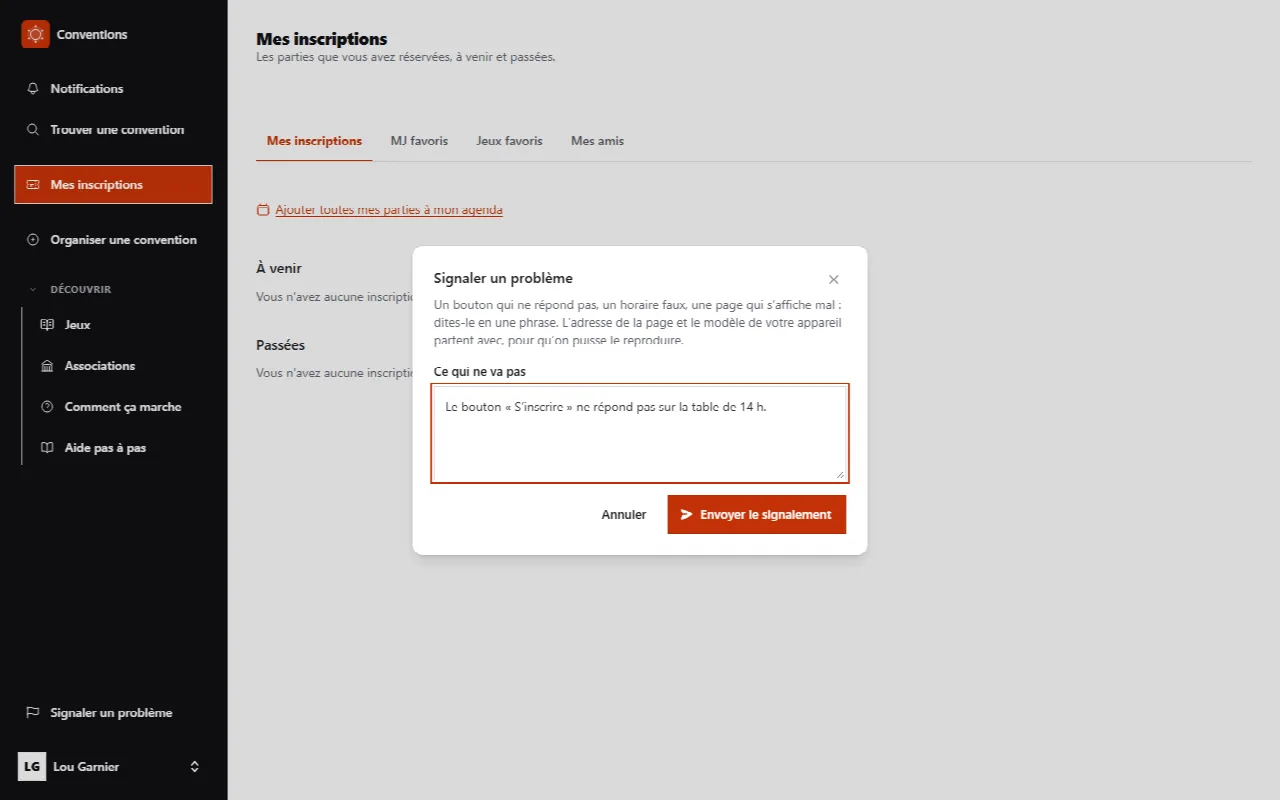
A button that doesn’t respond, a wrong time, a page that displays badly: report it from the page where it happens.
- Signed in, open the menu and click Report a problem.
- Write one sentence in What is wrong, then Send the report.
Retrieve your data, delete your account
- In Settings › Profile, the My data box offers Download my data: everything the application knows about you - conventions, tables, sign-ups, favorites, notes left to GMs, arrivals ticked at the front desk. Your credentials are not included.
- Further down, Delete account asks for your password then anonymizes the account: your identity disappears, while what others experienced with you - their table sheets, their stats - remains readable.